
Status Pages
Public-facing status pages to communicate system health and incidentsEdit
Publish a public page that shows system health, incidents, and scheduled maintenance, and notifies subscribers when something changes.
Components
Public services, with status from linked monitors and 90-day uptime
Incidents
Outages and scheduled maintenance, with a timeline of updates
Subscribers
Email, Slack, webhook, RSS, and iCal updates
Status pages are public and need no sign-in. Each page is served from its own subdomain or from your verified custom domain.
Create and Publish
Open Communicate → Status Pages, then choose Manage on a page to edit it.
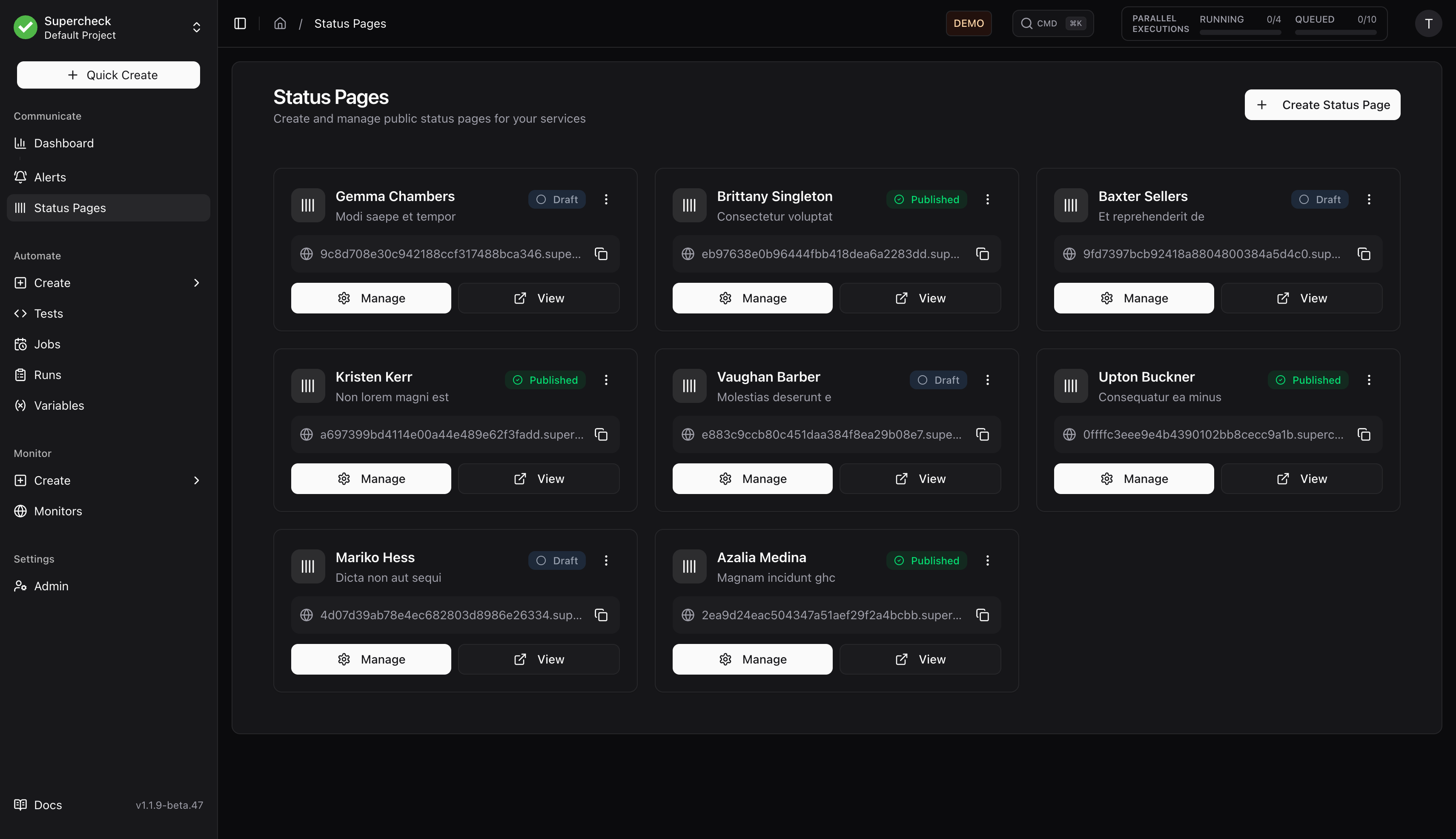
Create the page
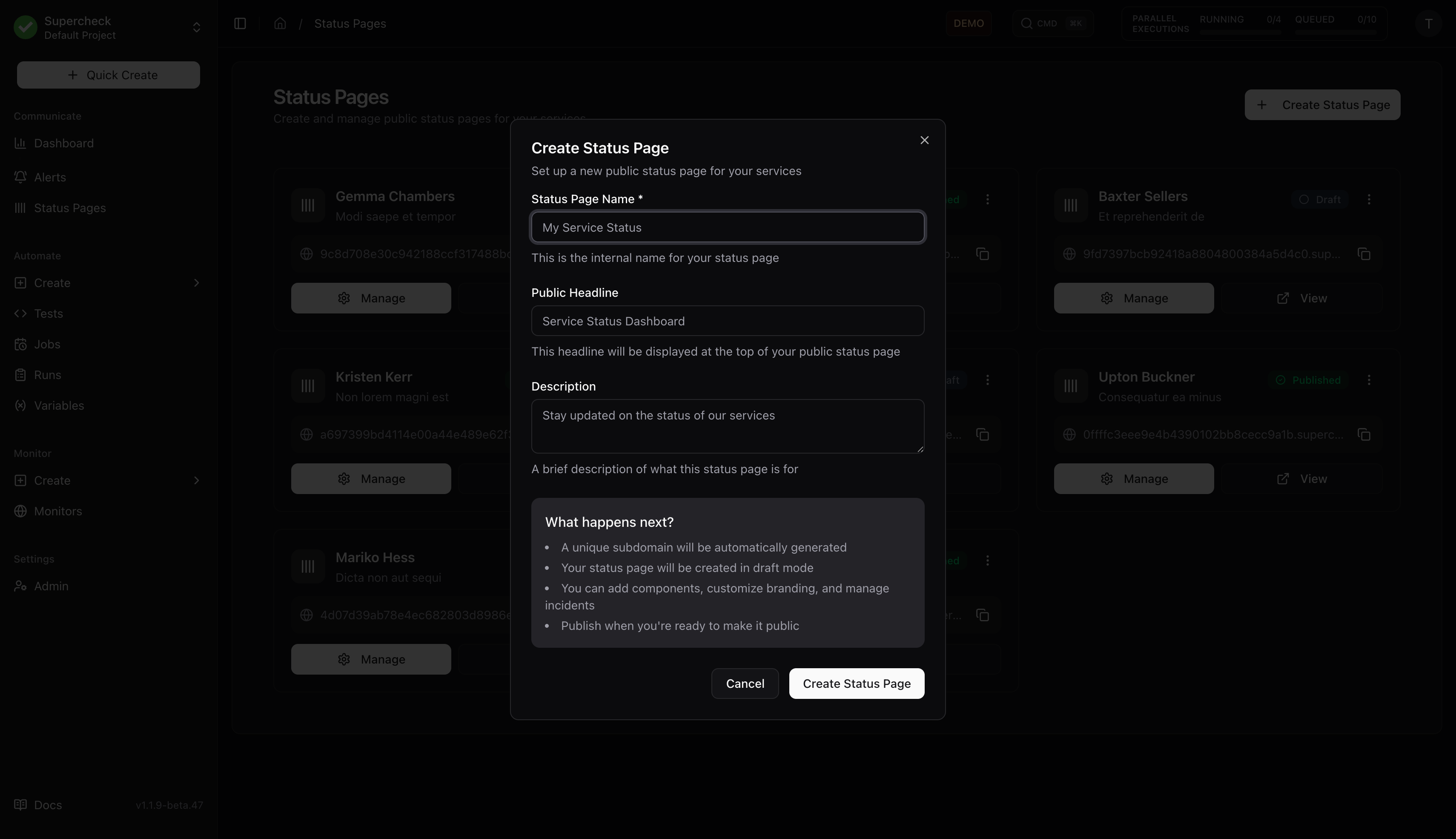
Choose Create Status Page and enter a Name (internal), Headline (public title), and Description. The page starts as a draft with a generated subdomain.
Add components
Add at least one component that is shown on the public page. Publishing requires it.
Configure settings (optional)
Set branding, subscriptions, and a custom domain in Settings.
Publish
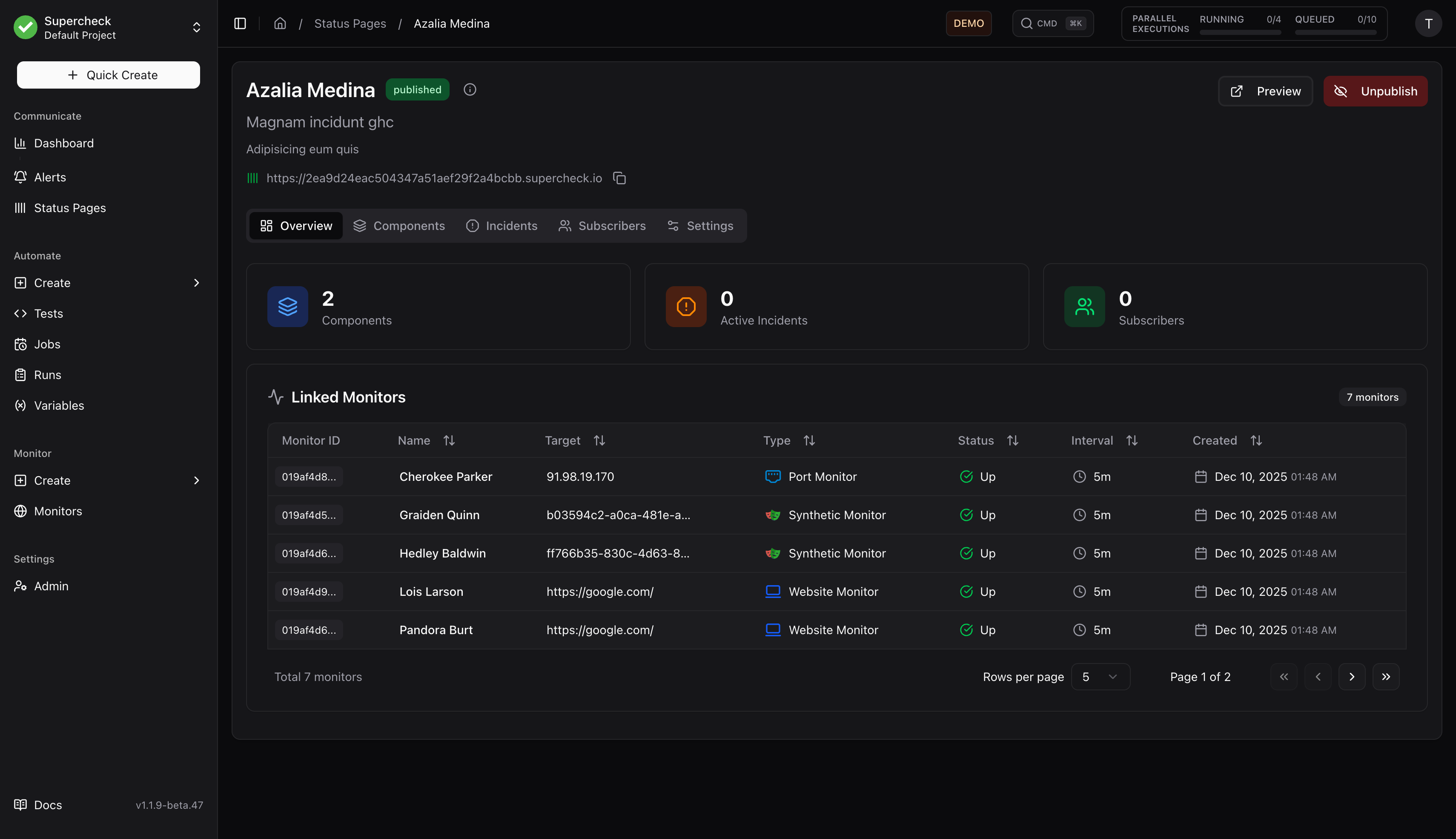
Choose Publish and share the URL. The Quick setup guide (info icon next to the page name) shows the same order.
| Action | Effect |
|---|---|
| Unpublish | Returns the page to draft and stops serving it. Components, incidents, and subscribers are kept. |
| Archive | Stops serving the page and marks it archived. Publishing it again restores access. |
Both actions ask for confirmation.
Public Page
| Section | Shows |
|---|---|
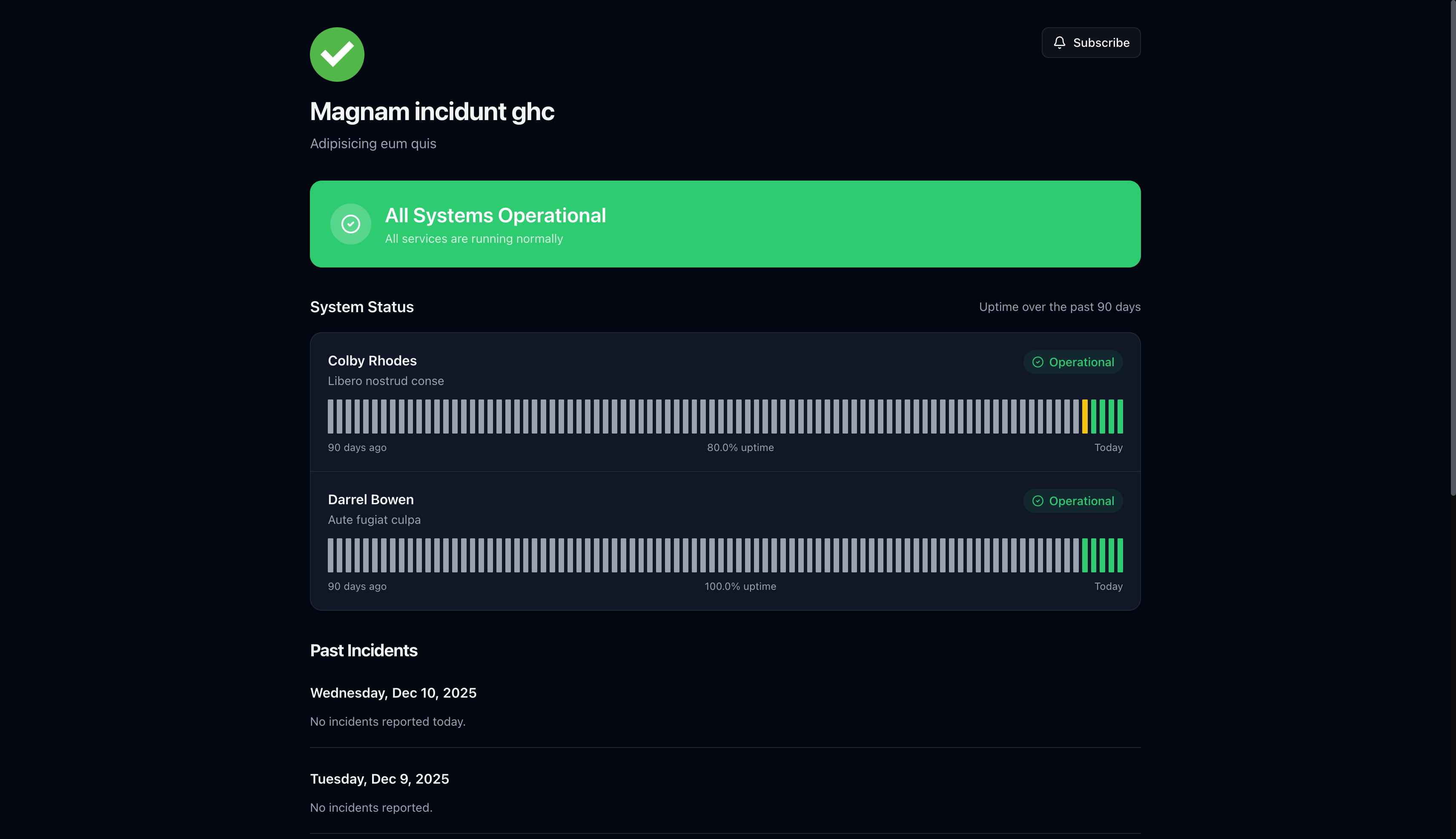
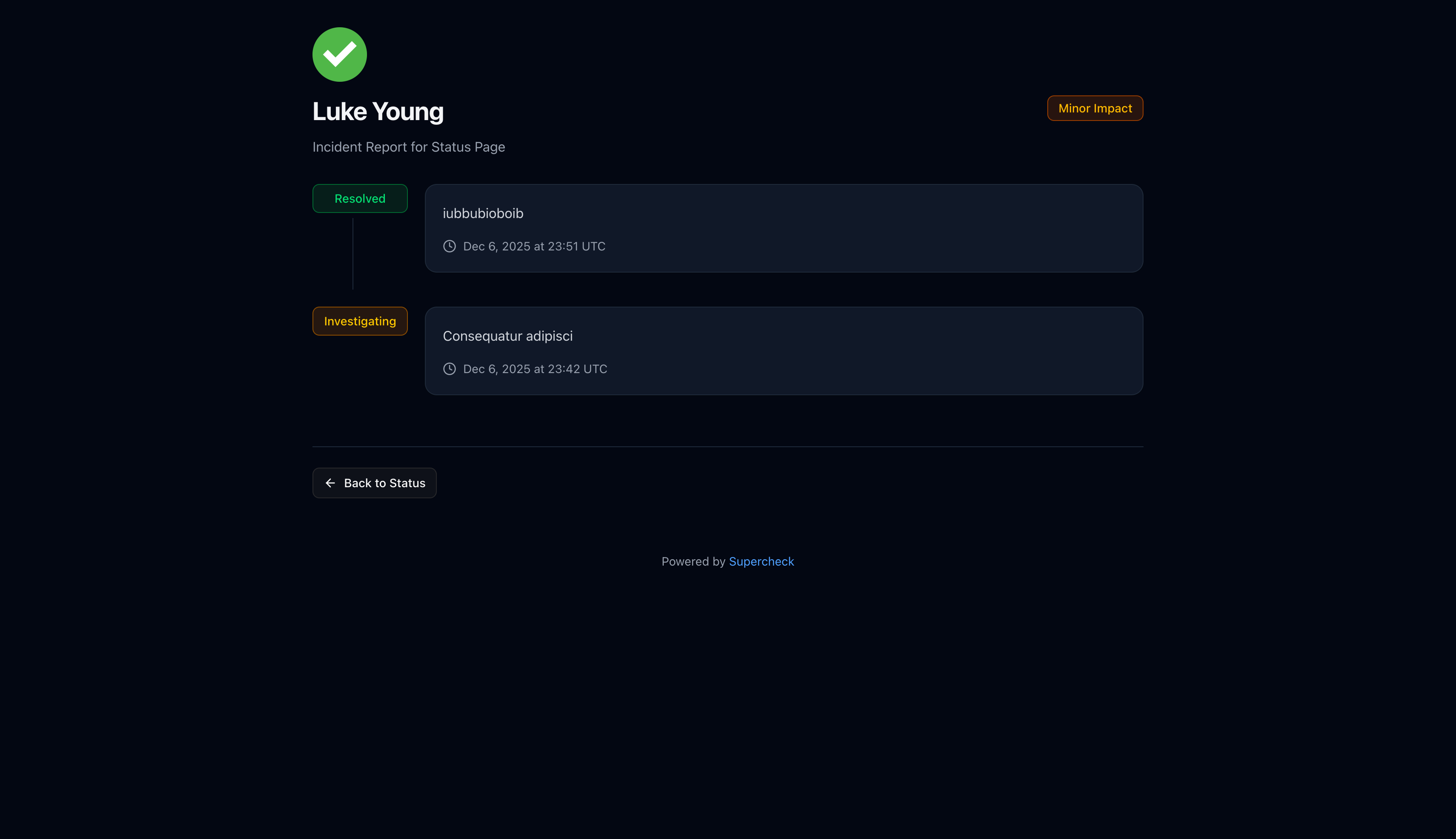
| Status banner | Overall health, such as All Systems Operational or Partial Outage |
| Components | Current status and check-based 90-day uptime for each public component |
| Incident history | Active incidents and up to 500 incidents from the last 90 days, grouped by date |
| Subscribe | Sign-up for incident notifications |
Clicking an incident opens its full timeline.
Languages: 24 languages, with right-to-left layout for Arabic. Supercheck writes its own automatic messages (outage, recovery, maintenance) in the page language. Text you write is never translated. Unknown language codes fall back to English.
Status Badge and Feeds
| Endpoint | URL | Notes |
|---|---|---|
| Badge | /api/status-pages/[id]/badge | SVG, public, CORS-enabled, briefly cached |
| RSS | /api/status-pages/[id]/rss | Incident updates. Needs Feeds (RSS and iCal) enabled |
| iCal | /api/status-pages/[id]/ical | Last 50 incidents for calendar apps. Same setting as RSS |
Prefix each path with your Supercheck URL. [id] is the status page UUID from the manage page URL; a wrong value shows invalid id on the badge.
| Badge parameter | Values | Default |
|---|---|---|
style | flat, flat-square | flat |
label | Left-side text, up to 64 characters | status |
Badge colors follow the page's Status Colors setting.
Components
Components are the public services on your page. A component can link to an internal service without publishing any service details.
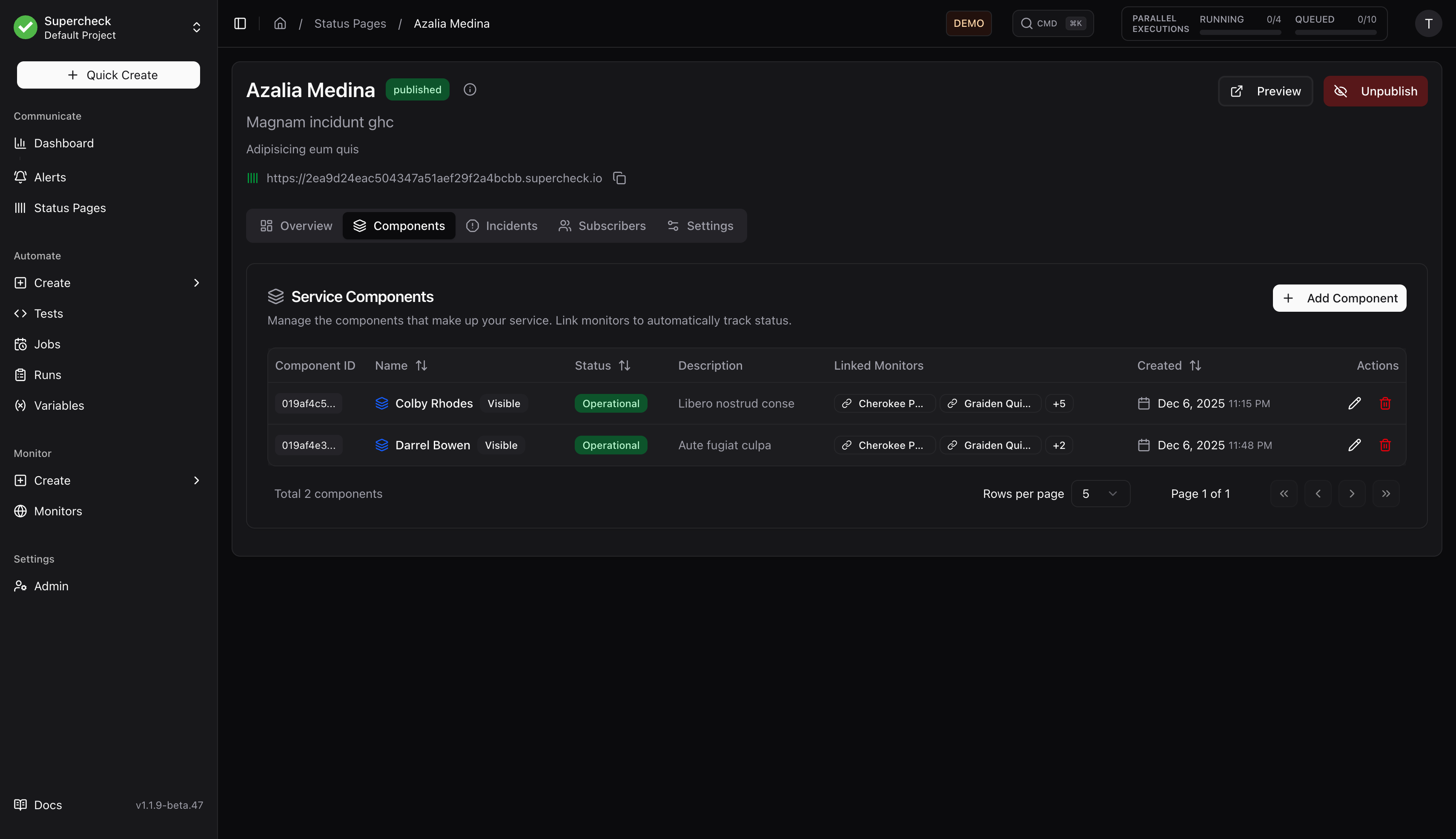
| Field | Purpose |
|---|---|
| Basics | Name, optional description, and status. Status is manual until you link a monitor |
| Monitors | Linked monitors, aggregation method, and Failing monitors required. Weighted average takes a weight from 1 to 100 per monitor |
| Publish outage and recovery incidents automatically | Optional, off by default |
| Visibility | Show on the public page, show only while degraded, and link an internal service (never published) |
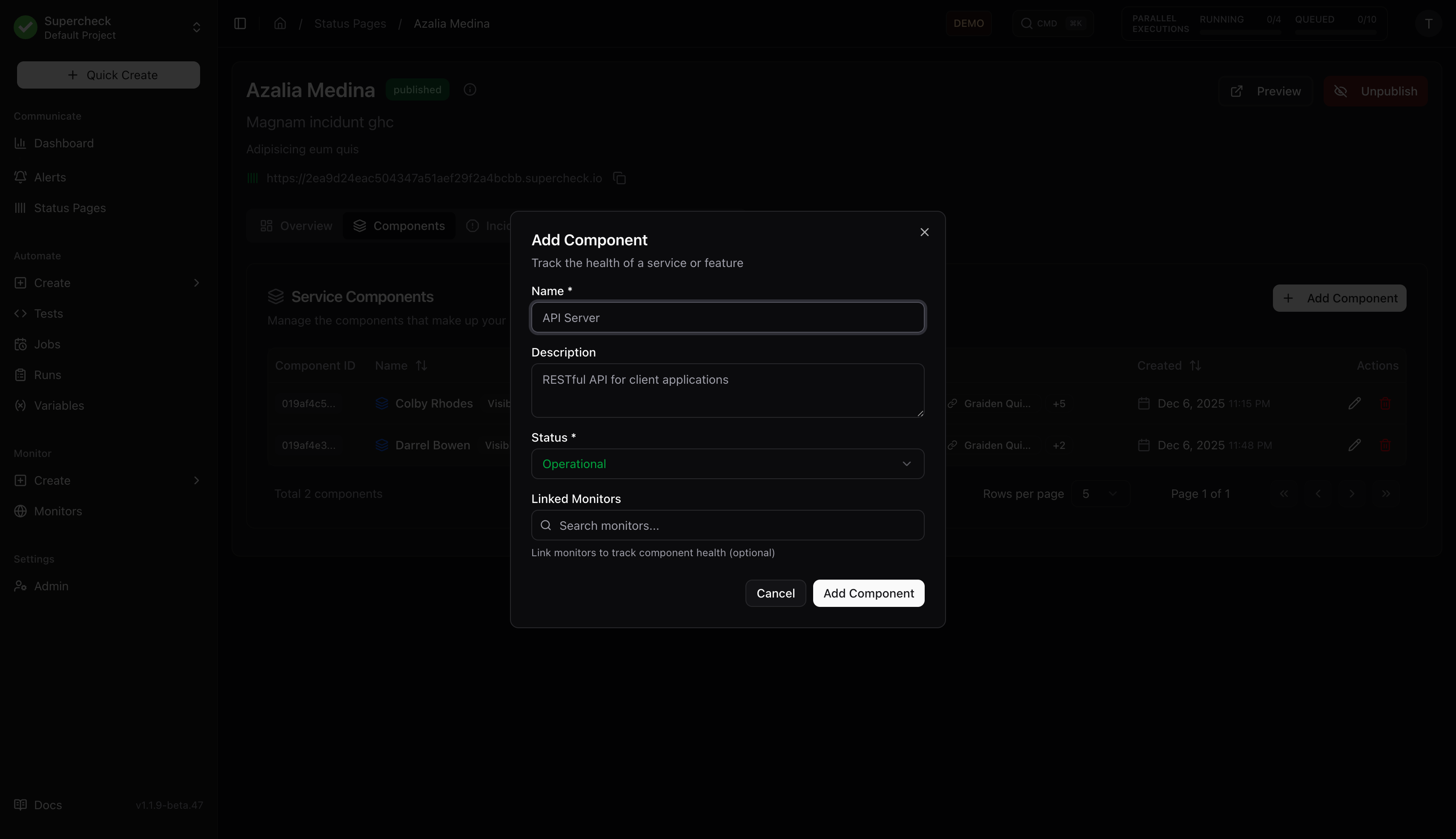
| Aggregation | Component status |
|---|---|
| Worst monitor | The worst status among linked monitors |
| Best monitor | The best status among linked monitors |
| Majority vote | The status most linked monitors report |
| Weighted average | The status with the highest combined weight; ties go to the worse status |
Linked components refresh every 10 seconds. Failing monitors required is the minimum number of failing linked monitors, separate from a monitor's own alert threshold. If you resolve an automatic incident while its monitors still fail, it is not reopened until the component returns to Operational.
| Status | Color | Meaning |
|---|---|---|
| Operational | Green | Working normally |
| Degraded Performance | Yellow | Slower than normal |
| Partial Outage | Orange | Some features unavailable |
| Major Outage | Red | Service down |
| Under Maintenance | Blue | Scheduled maintenance in progress |
Uptime is successful checks divided by total checks over the last 90 UTC days. Days without checks show no data. It is check-based, not a time-weighted SLA. The banner and badge use showcased components, including components hidden while healthy.
Incidents
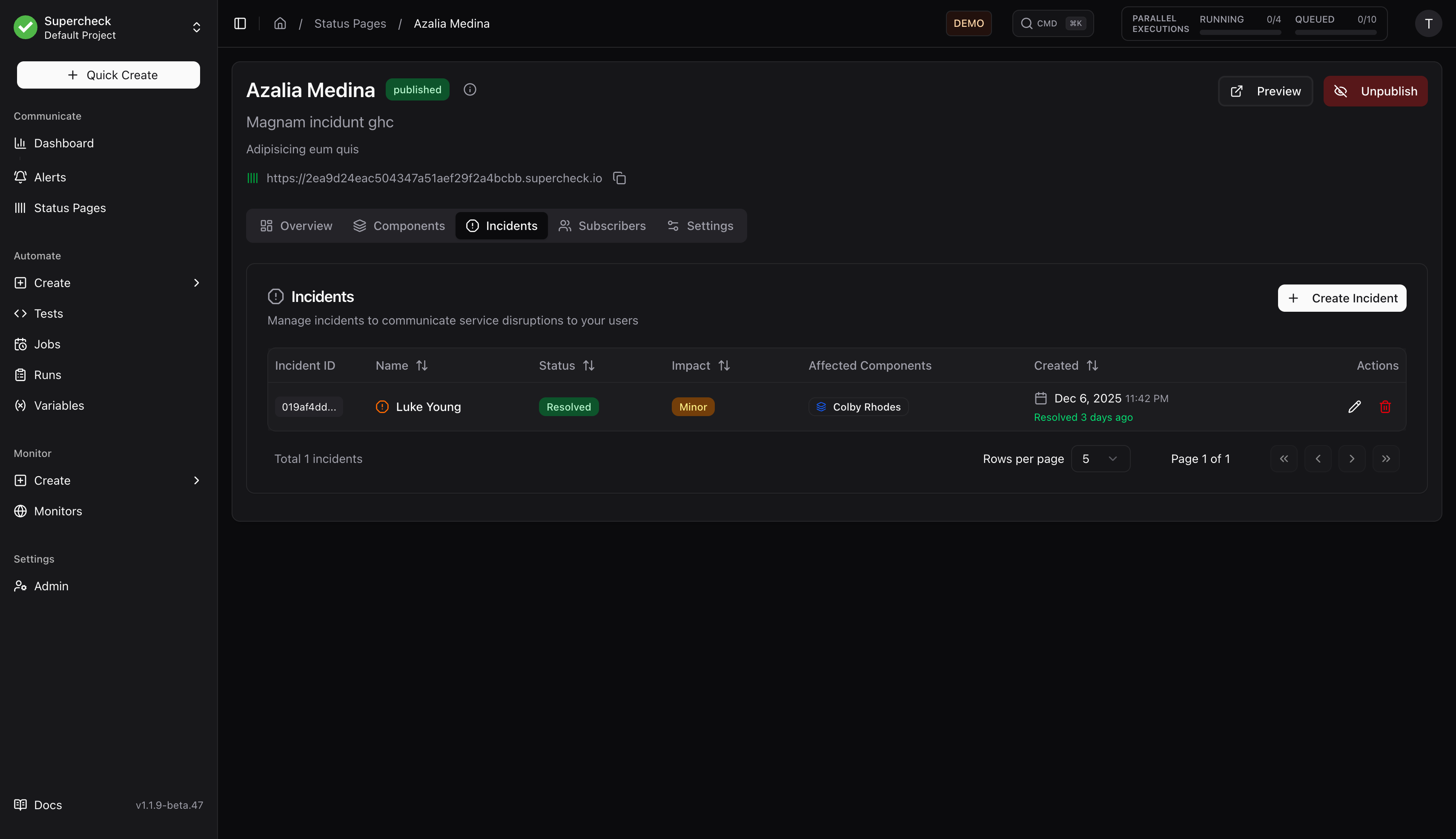
Create the incident
Open Incidents and choose Create Incident. The page needs at least one component first.
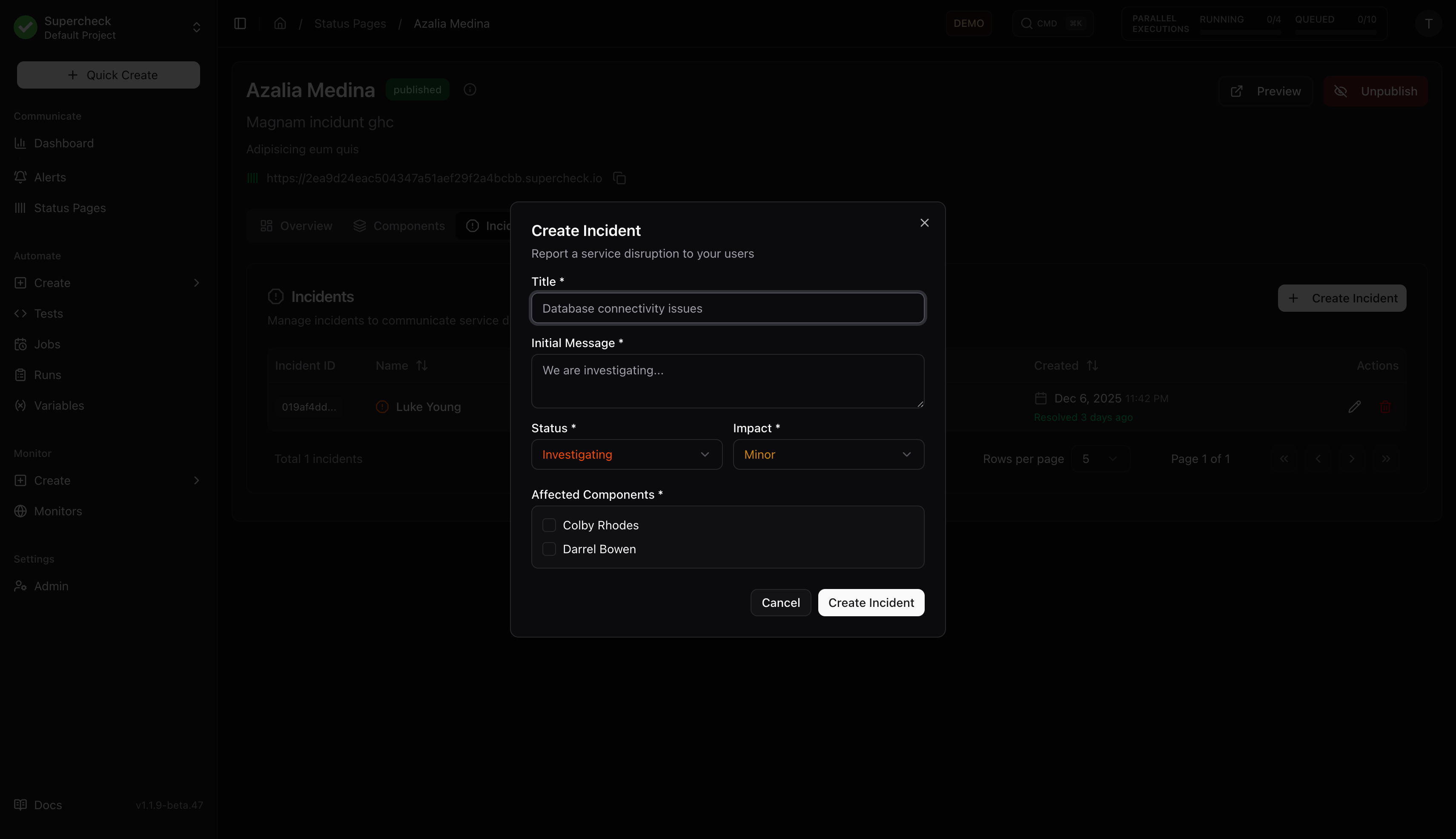
Fill in the details
| Field | Notes |
|---|---|
| Title and Initial message | The message is published immediately |
| Status and Impact | Current stage and severity |
| Affected components | At least one, plus the status they show while the incident is active |
| Maintenance window | Start and end, for Scheduled only. The end must be after the start and in the future |
| Link internal SRE incident | Optional. Only your public title and message are published |
Notify and update
Keep Notify subscribers selected to send the update. Post progress with Add Update on the incident.
| Status | Meaning |
|---|---|
| Investigating | Issue detected, team investigating |
| Identified | Root cause found, working on a fix |
| Monitoring | Fix deployed, watching stability |
| Resolved | Issue resolved |
| Scheduled | Planned maintenance |
A linked SRE incident stays private: investigation notes and evidence are never copied. Use View public status update and Internal SRE incident to move between the two.
Subscribers
Visitors can follow the whole page or pick specific components and incidents. Each channel can be turned on or off in Settings → Subscriptions.
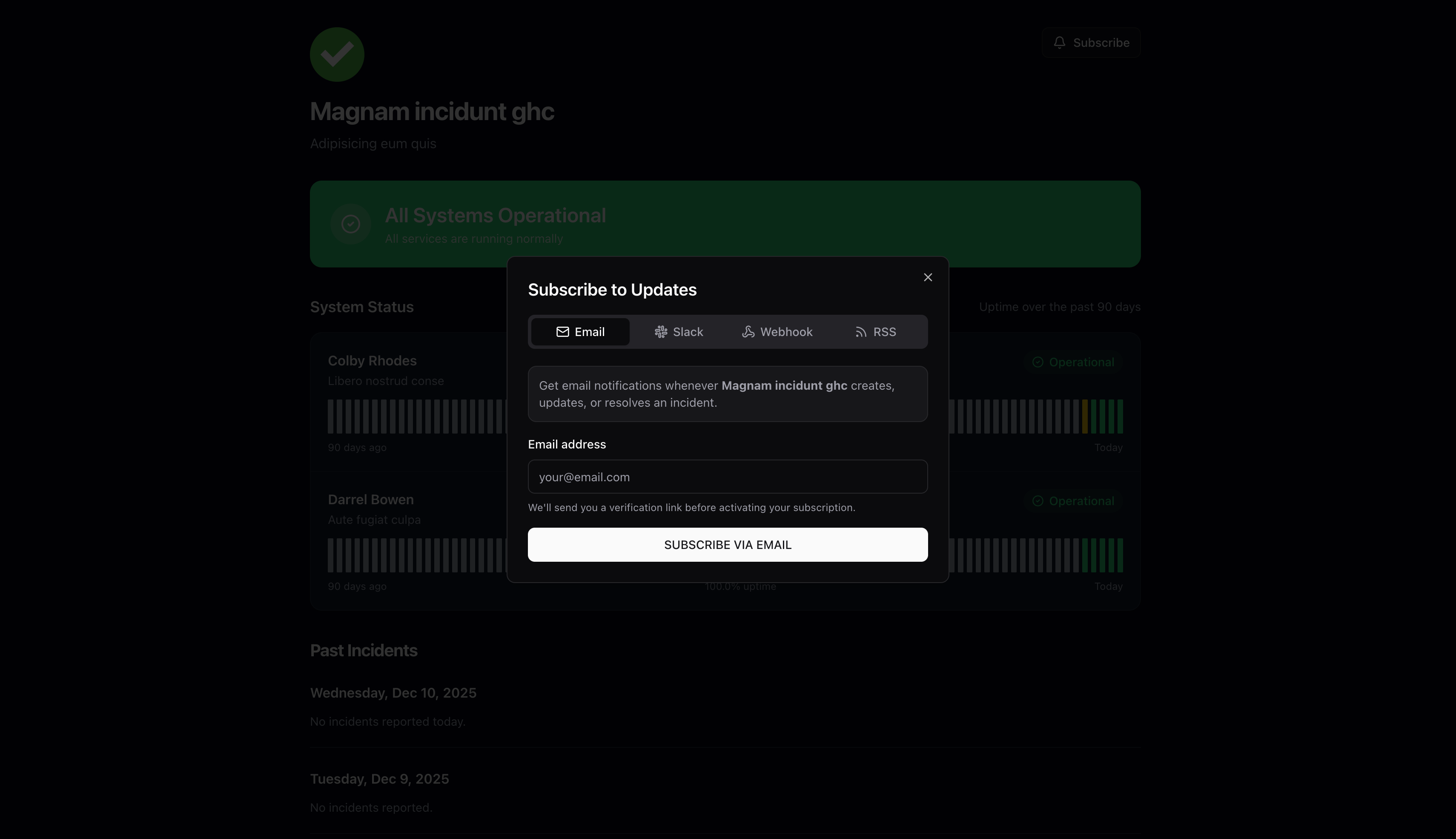
Choose Subscribe, enter an email, select Subscribe via Email, then open the verification link.
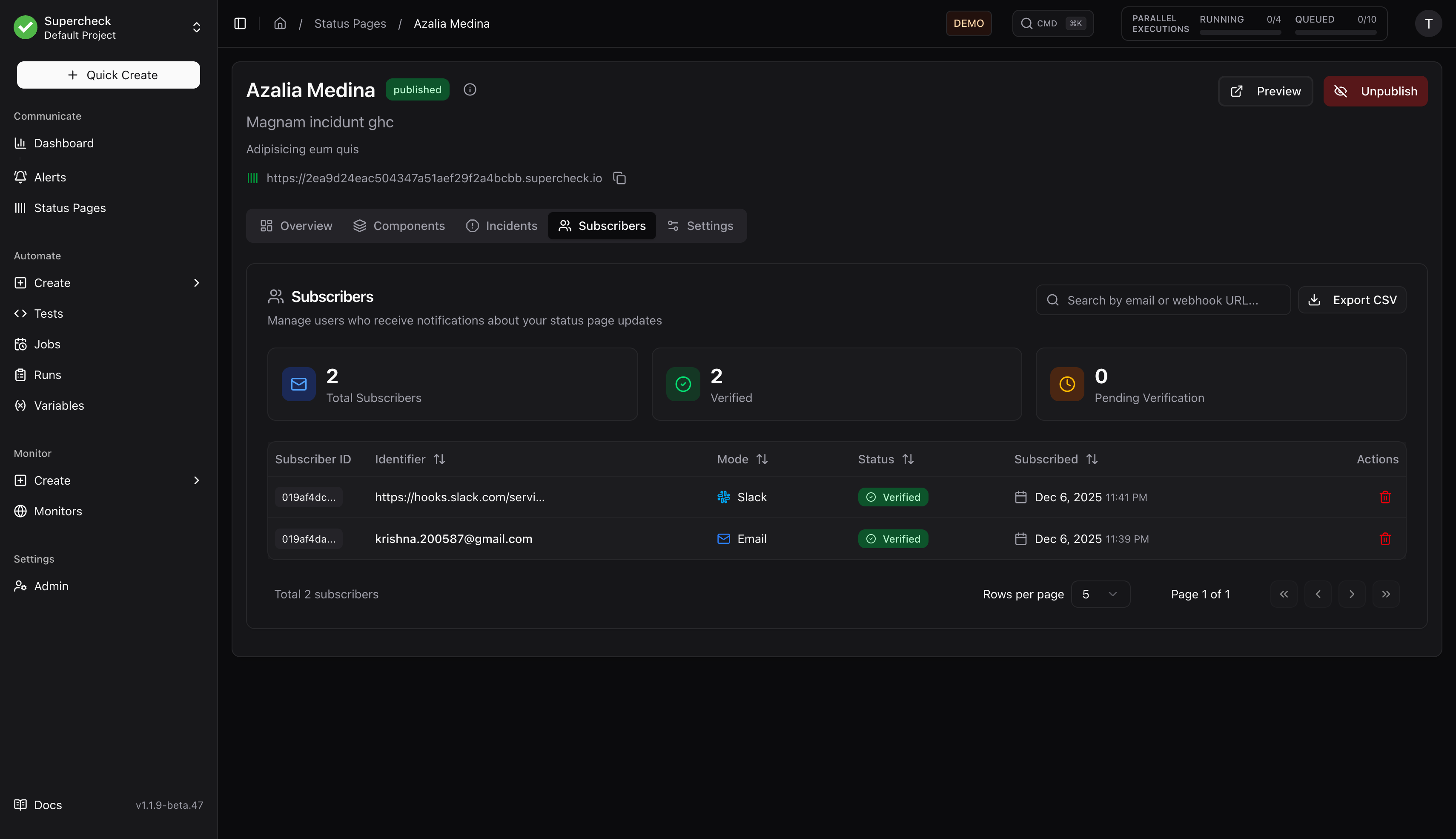
The Subscribers tab lists email, Slack, and webhook subscribers with verification status, search, CSV export, delivery history, and retry for failed deliveries. Slack webhook URLs are masked.
Subscribers are notified when an incident is created, updated, or resolved, and when you publish maintenance updates, but only for updates sent with Notify subscribers selected.
Settings
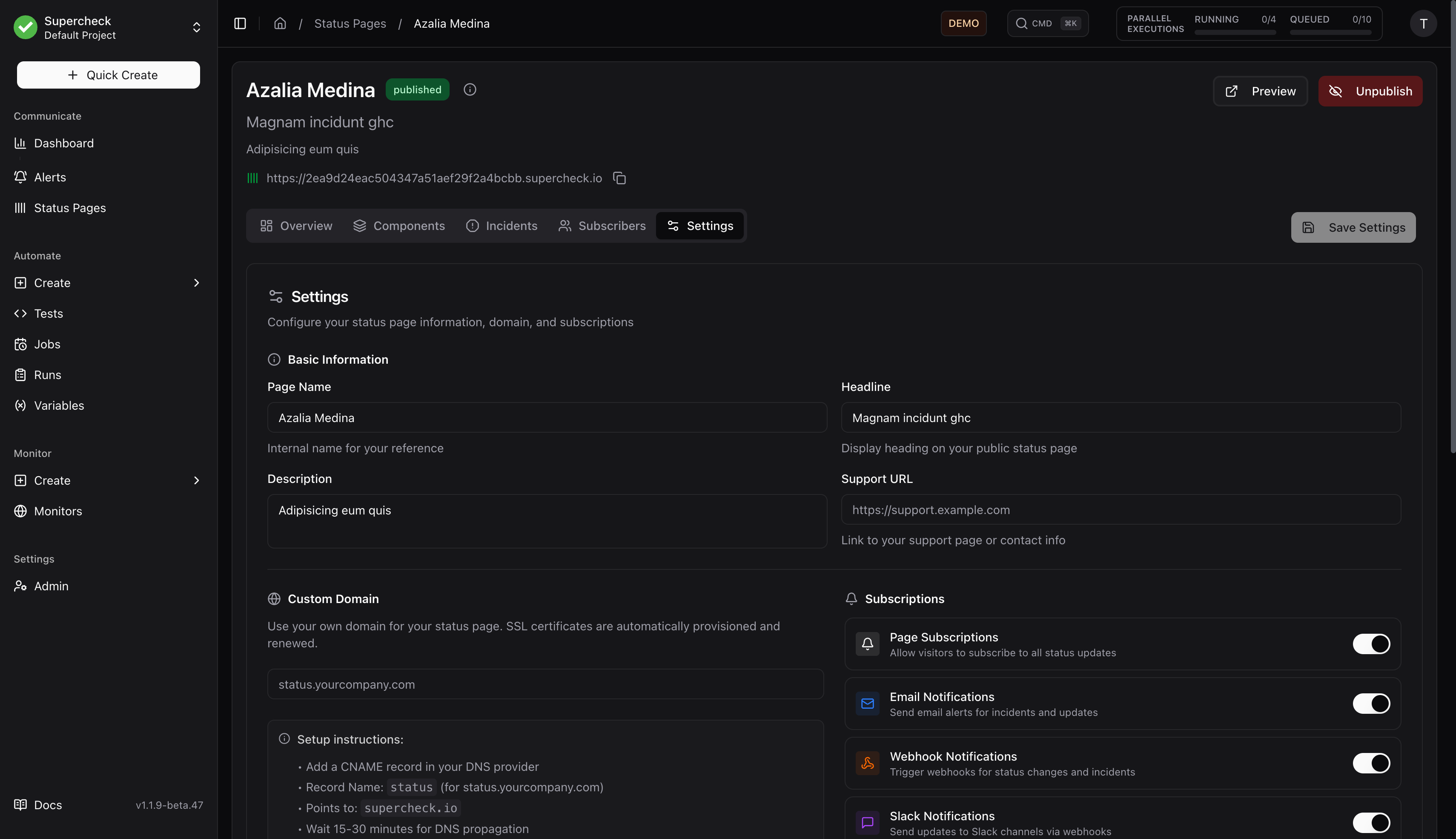
| Card | Contains |
|---|---|
| General | Internal name, public headline, description, support contact, and language |
| Custom domain | Hostname, verification status, and DNS records |
| Subscriptions | Page and incident subscriptions; email, webhook, and Slack channels; Feeds (RSS and iCal) |
| Branding | Logo (630 × 420 px, max 5 MB), favicon (96 × 96 px, max 5 MB), and status colors |
A save bar appears while there are unsaved changes. Reset in Branding applies immediately, without Save changes.
Custom Domain
Use a subdomain such as status.example.net. Apex domains are not supported.
| Step | Action |
|---|---|
| 1. Save | Enter the hostname in Settings and save |
| 2. Add DNS | A CNAME to the target shown in Settings, and the TXT proof at _supercheck-challenge.<custom-hostname> |
| 3. Verify | After propagation, choose Verify DNS. The page must be published |
| 4. Check HTTPS | Open the URL and confirm the certificate before sharing |
Keep the TXT record in place; ownership is rechecked daily. To remove the domain, clear the field and save; the default URL keeps working.
On Cloudflare, use DNS only while verifying. Turn on the proxy only after the origin serves HTTPS for the hostname, with Full or Full (Strict) TLS.