
Runs
View execution history and resultsEdit
Every test or job execution creates a run with results, logs, and artifacts.
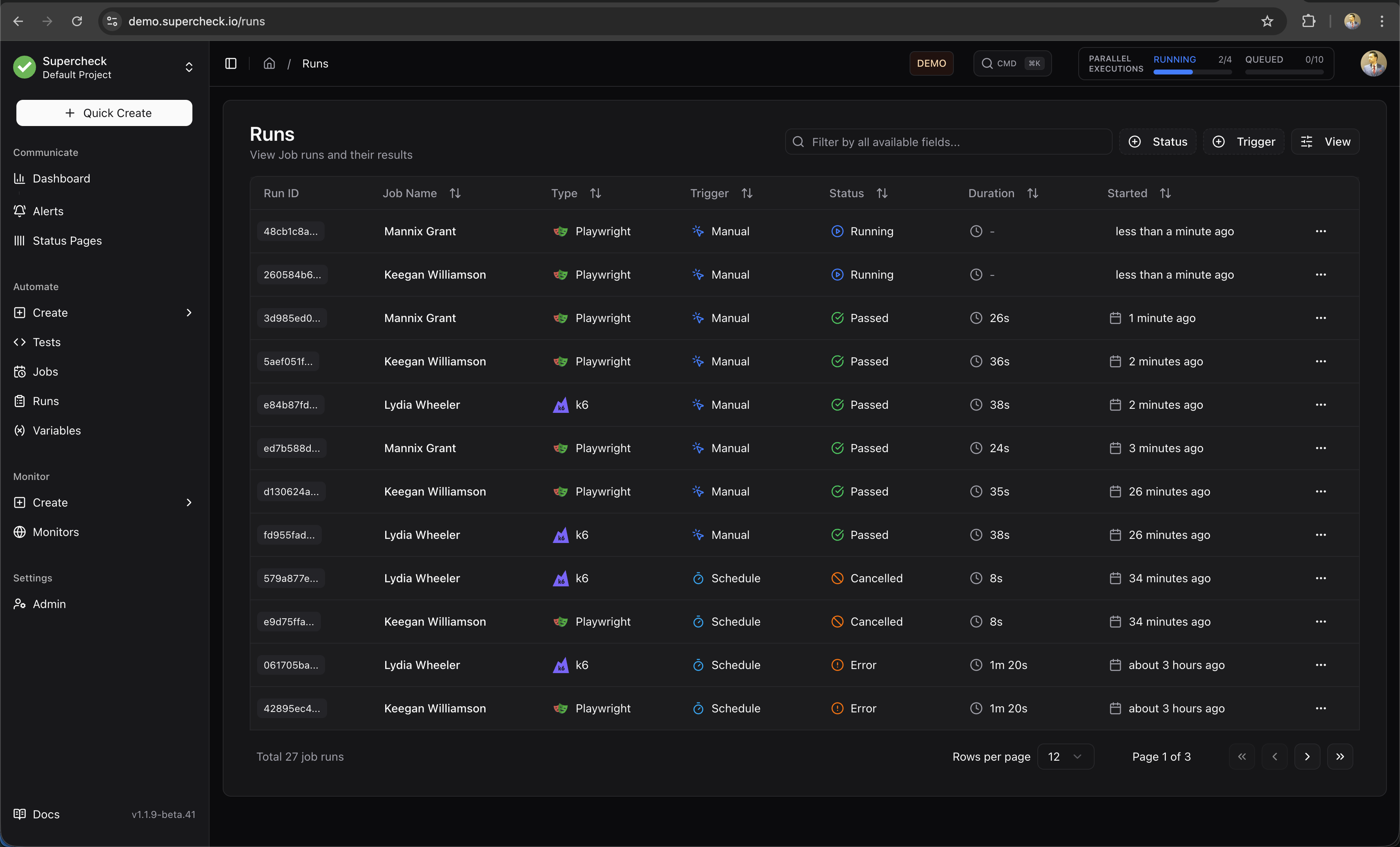
Run Status
| Status | Description |
|---|---|
| Passed | All tests completed successfully |
| Failed | One or more tests failed |
| Error | Execution error (timeout, crash, infrastructure) |
| Running | Currently executing |
| Queued | Waiting to execute |
| Blocked | Execution denied by access or spending controls |
View Runs
- Go to Automate → Runs
- Select a run to view its details
When cancellation is requested for a running execution, the run is recorded as Error with cancellation details. The worker may still be finishing report uploads.
Run Details
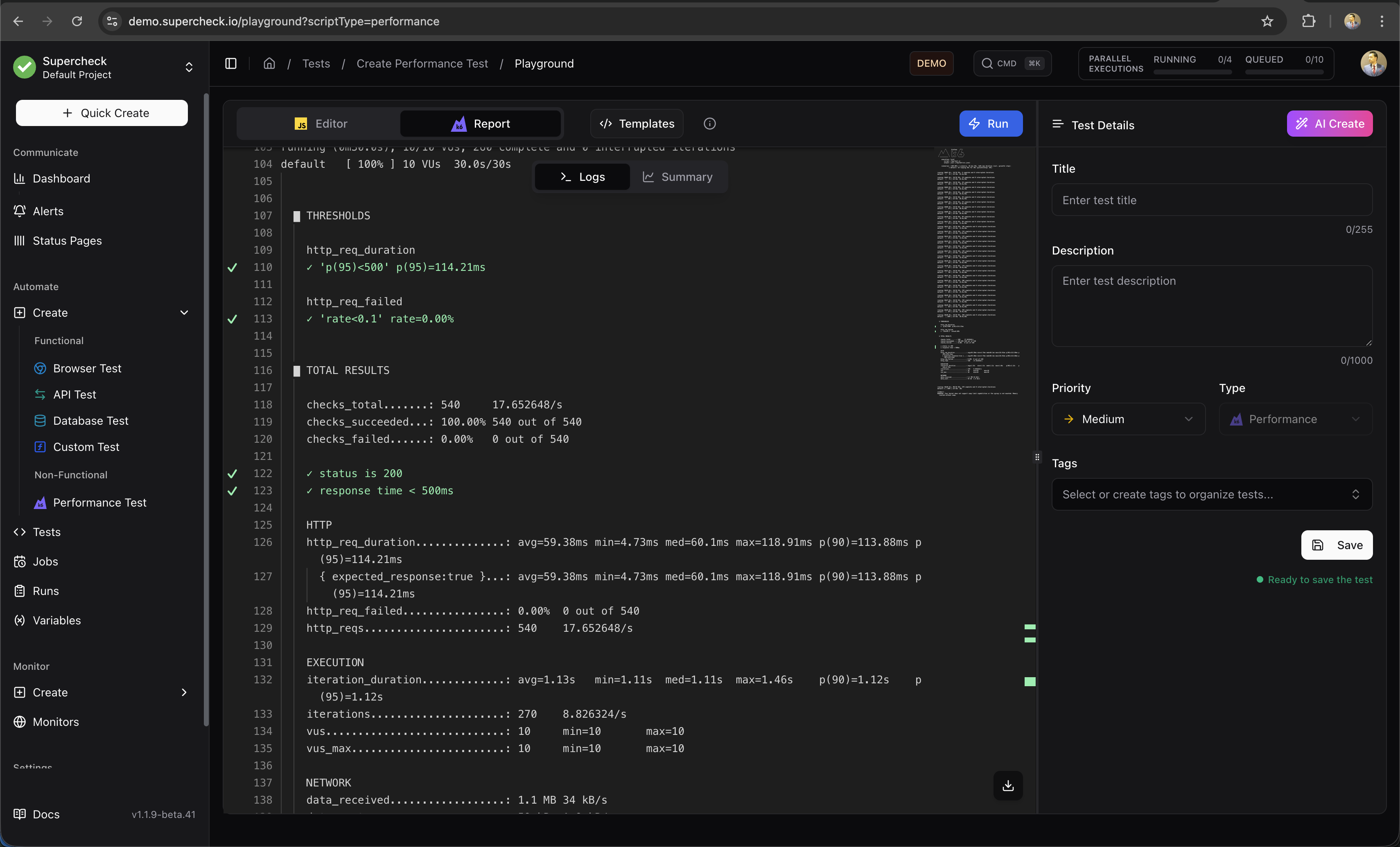
Each run includes:
- Results — Pass/fail count and duration
- Screenshots — Available screenshots from browser checks
- Videos — Browser test recordings
- Logs — Console output and live streaming logs
- Trace — Step-by-step execution replay
Debug Failures
- Open failed run
- Check error message
- View screenshot at failure point
- Review console logs
- Check network requests
AI Analyze
Click AI Analyze on any job run to generate an AI-powered analysis report.
What AI Analyze Provides:
- Execution Summary — Overview of what happened during the run
- Failure Analysis — Suggested causes supported by the available run data
- Performance Insights — Duration analysis and optimization suggestions
- Recommendations — Actionable next steps based on actual run data
Supported Job Types:
- Playwright — Analyzes test failures with HTML report context
- K6 — Analyzes performance metrics and threshold breaches
Self-hosted: an administrator must configure an AI provider first.
Job Analytics
Open Automate → Runs and use the tabs at the top: All runs, Performance (k6), and Browser (Playwright). The selected view is kept in the URL (/runs?view=k6 or /runs?view=playwright), so you can bookmark or share it.
Switching projects resets analytics filters, job selection, and any open comparison. Each view loads jobs from the newly selected project.
Performance (k6)
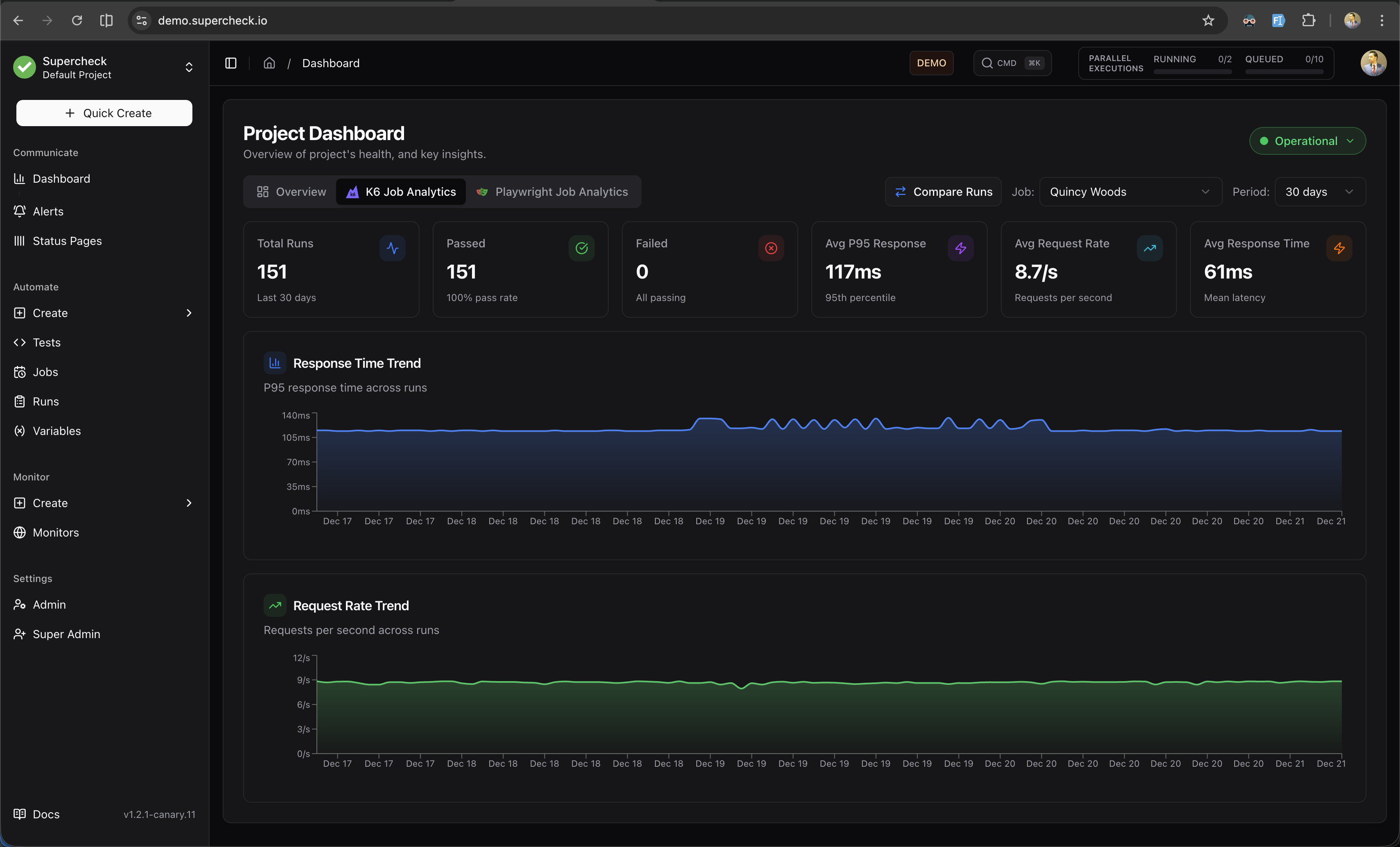
The Performance (k6) view provides detailed performance metrics for your load tests.
Filters
- Job — Filter to a specific K6 job or view all jobs
- Period — Analyze last 30, 60, or 90 days of data
Metric Cards
| Metric | Description |
|---|---|
| Total Runs | Number of K6 test executions in the selected period |
| Passed | Runs where all thresholds passed, with pass rate percentage |
| Not passed | Finished runs that did not pass (failed, error, or blocked). Shows "All passing" only when there are none |
| Avg P95 Response | Average 95th percentile response time across runs |
| Avg Request Rate | Average requests per second across runs |
| Avg Response Time | Mean response latency across runs |
Charts
Response Time Trend
Area chart showing P95 response time across runs. Use this to identify performance regressions or improvements over time.
Request Rate Trend
Area chart showing requests per second across runs. Monitor throughput patterns and capacity trends.
Run Comparison
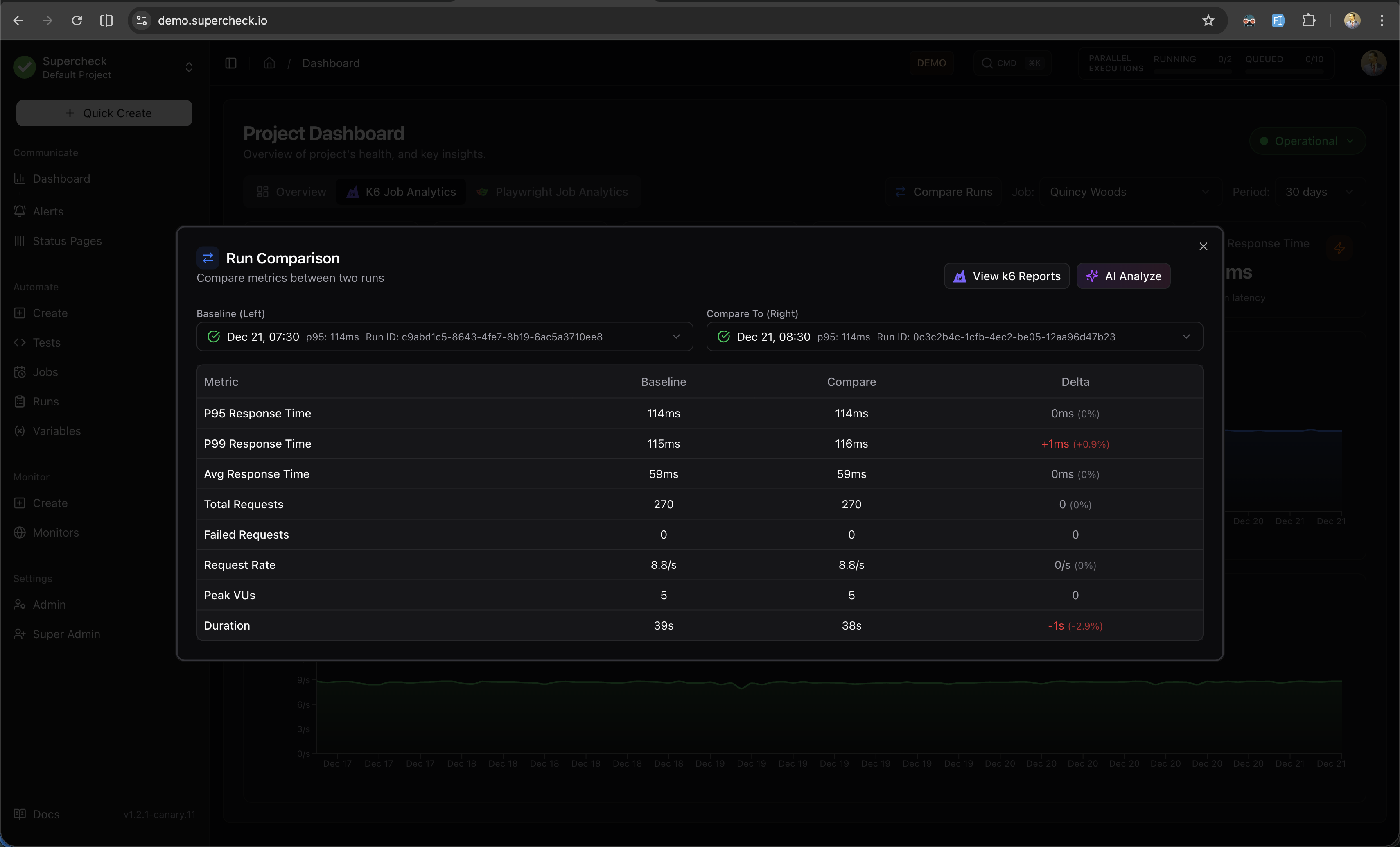
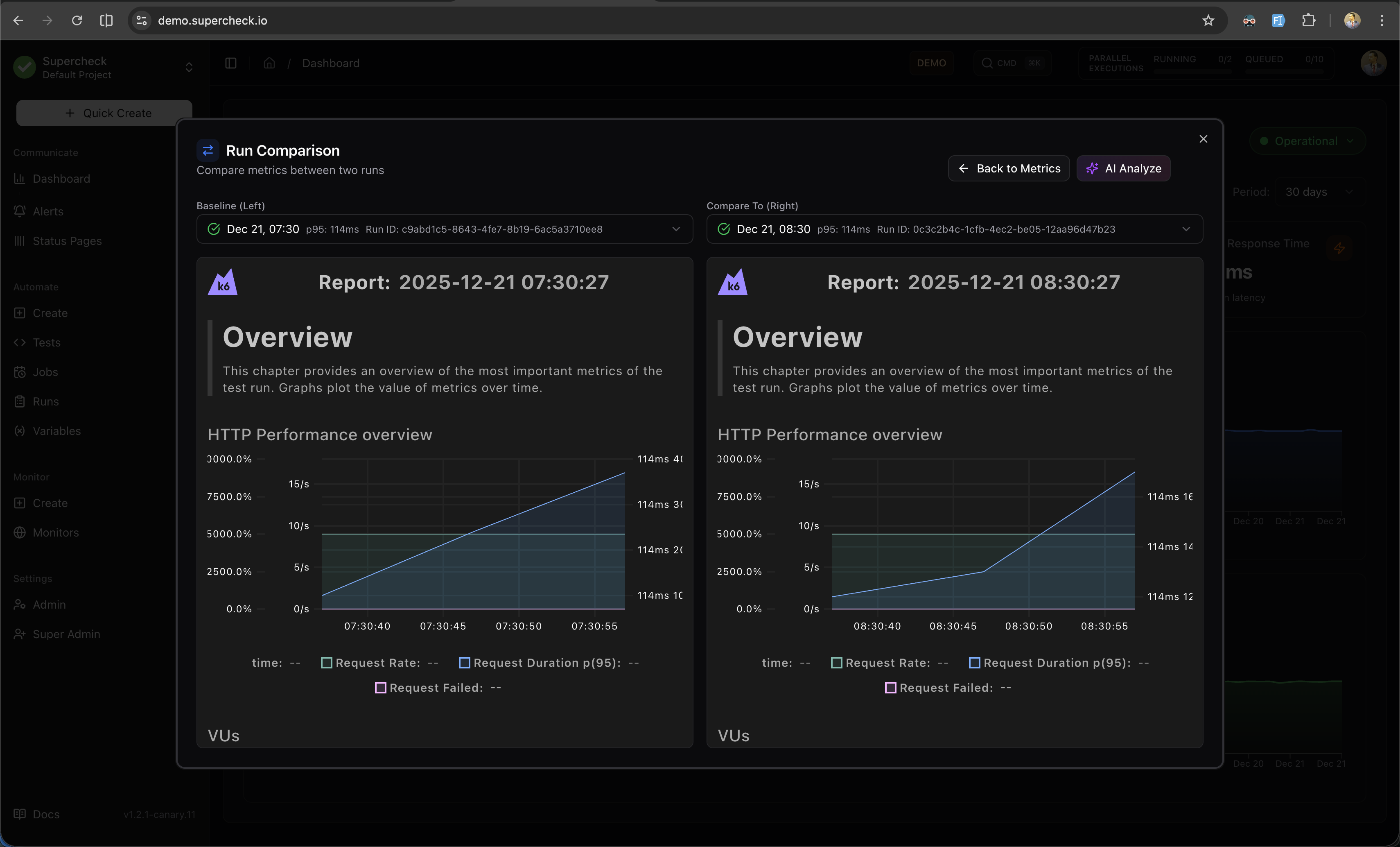
When a specific job is selected and has 2+ runs, click Compare Runs to open a side-by-side comparison dialog.
Run Selection
- Baseline (Left) — Select the reference run to compare against
- Compare To (Right) — Select the run to compare with the baseline
Each run in the dropdown displays:
- Pass/fail status indicator
- Run date and time
- P95 response time
- Run ID
Comparison Metrics
The comparison table shows metrics from both runs with calculated delta values:
| Metric | Description | Better When |
|---|---|---|
| P95 / P99 / Avg Response | Latency percentiles | Lower |
| Total / Failed Requests | Request counts | Higher / Lower |
| Request Rate | Requests per second | Higher |
| Peak VUs | Maximum virtual users | Context-dependent |
Delta values are color-coded:
- Green — Improvement
- Red — Regression
View k6 Reports
Click View k6 Reports to compare the detailed k6 HTML reports side-by-side.
AI Analyze
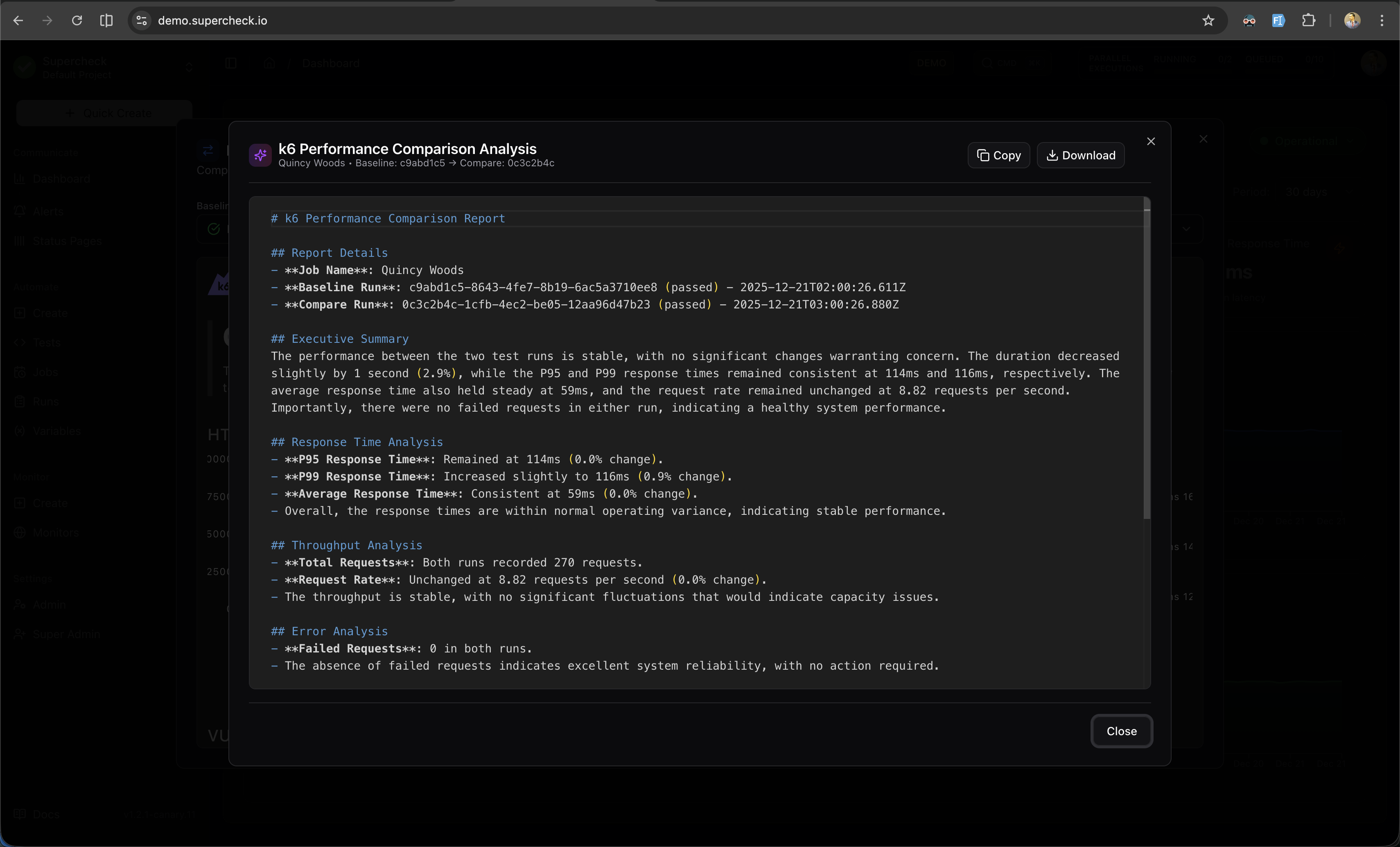
Click AI Analyze to generate an AI-powered performance comparison report.
Features:
- Metric Comparison — Detailed analysis of response times and throughput
- Performance Insights — What improved and what regressed
- Potential Causes — AI-identified reasons for changes
- Recommendations — Actionable steps for improvement
Self-hosted: an administrator must configure an AI provider first.
Browser (Playwright)
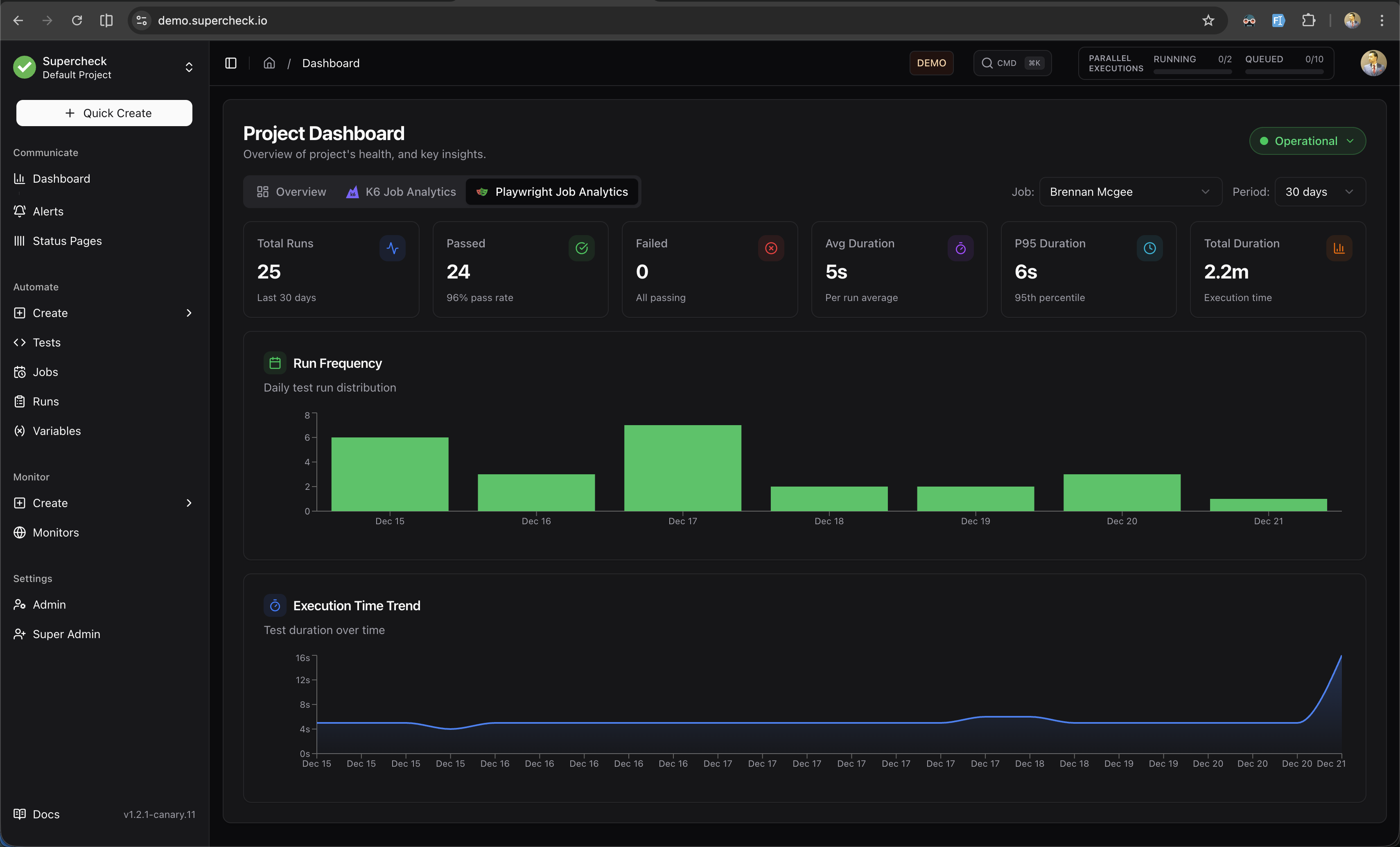
The Browser (Playwright) view provides insights into your browser test execution patterns and duration trends.
Filters
- Job — Filter to a specific Playwright job or view all jobs
- Period — Analyze last 30, 60, or 90 days of data
Metric Cards
| Metric | Description |
|---|---|
| Total Runs | Number of Playwright test executions in the selected period |
| Passed | Successful runs with pass rate percentage |
| Not passed | Finished runs that did not pass (failed, error, or blocked). Shows "All passing" only when there are none |
| Avg / P95 Duration | Execution time statistics |
| Total Duration | Cumulative execution time in minutes |
Charts
Run Frequency
Stacked bar chart showing daily test run distribution (Passed vs Failed). Use this to identify testing patterns and failure spikes.
Execution Time Trend
Area chart showing test duration over time. Monitor for performance regressions, flaky tests, or infrastructure issues.