
Jobs
Schedule and automate test executionEdit
Jobs let you group tests together and run them automatically on a schedule or trigger them from your CI/CD pipeline. Use jobs to automate regression testing, smoke tests, and continuous validation of your applications.
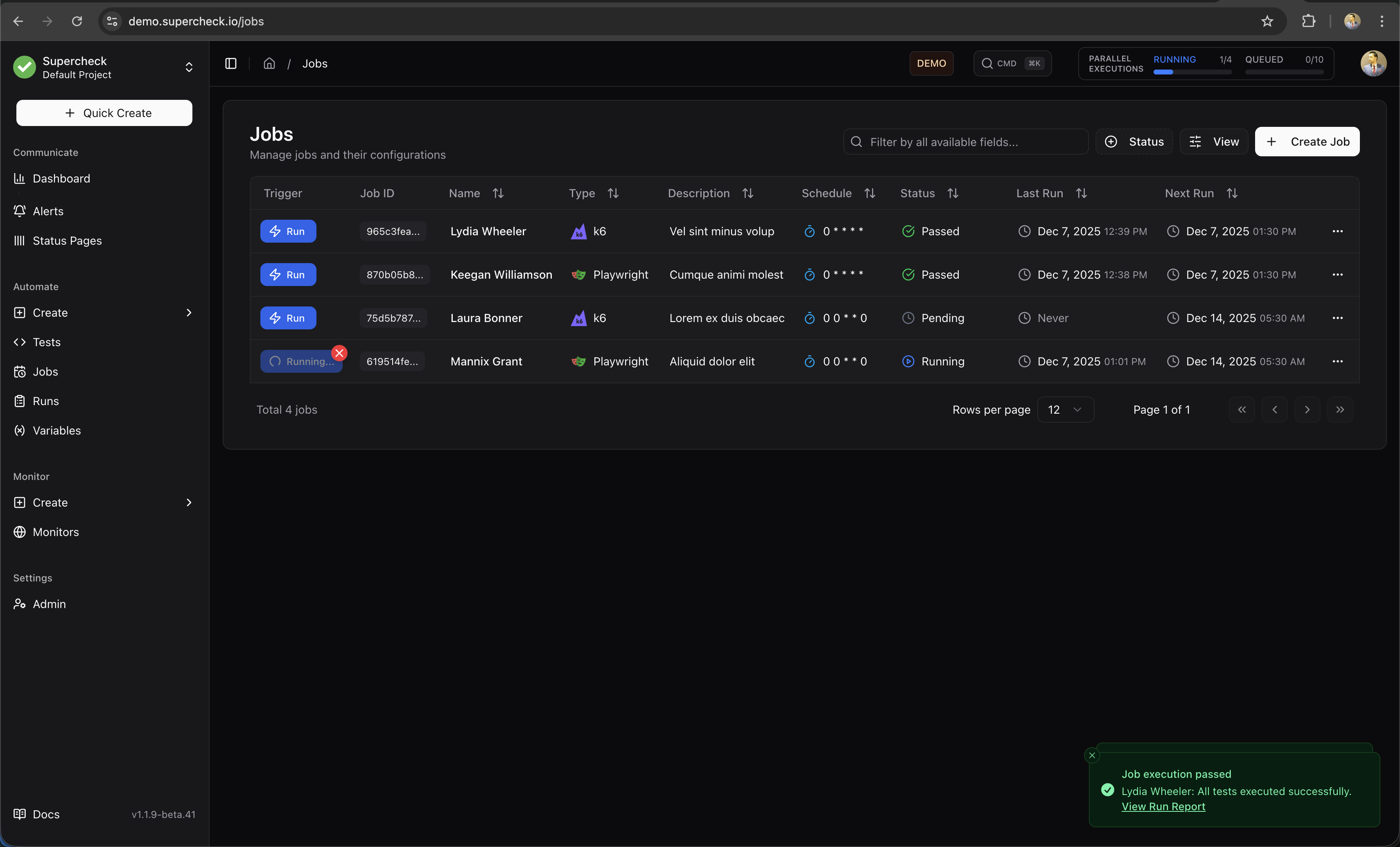
What Jobs Do
A job is a collection of tests that run together. When a job executes:
- All selected tests run in sequence
- Results are collected and aggregated
- Your selected channels receive notifications for the alert types you enable
- Reports are generated with full details
Use jobs for:
- Scheduled regression tests — Run nightly or hourly to catch issues early
- Smoke tests — Quick validation after deployments
- CI/CD integration — Trigger tests from your build pipeline
- Monitoring — Regular checks of critical user flows
Creating a Job
On Supercheck Cloud, creating or editing a job requires an active organization subscription and a valid billing customer. These billing checks do not apply to self-hosted installations.
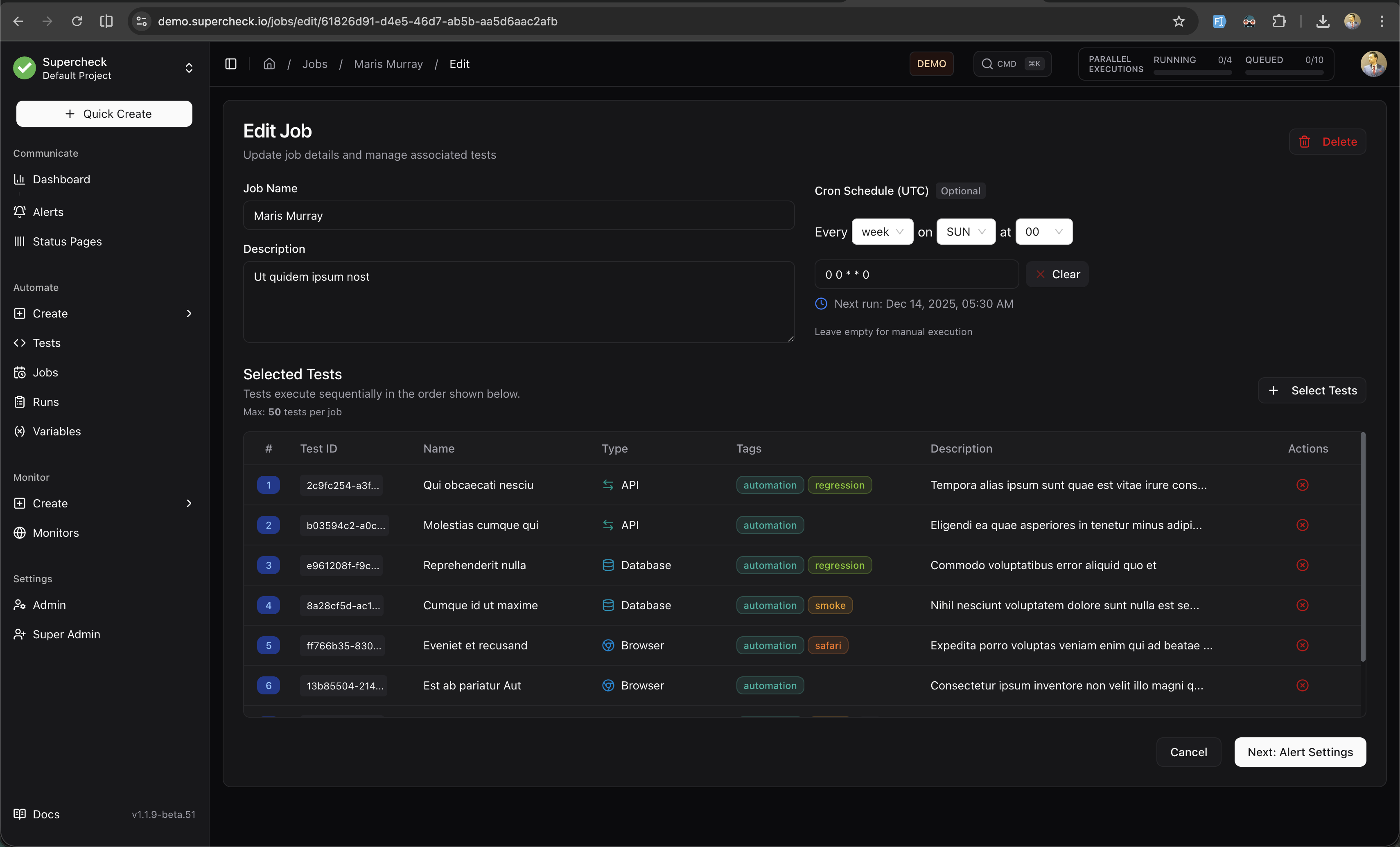
Step 1: Basic Information
- Go to Create → Job
- Enter a descriptive name (e.g., "Nightly Regression Suite")
- Add an optional description explaining what the job tests
Step 2: Select Tests
Choose which tests to include in the job. You can select any combination of:
- Browser tests (Playwright)
- API tests
- Database tests
- Custom tests
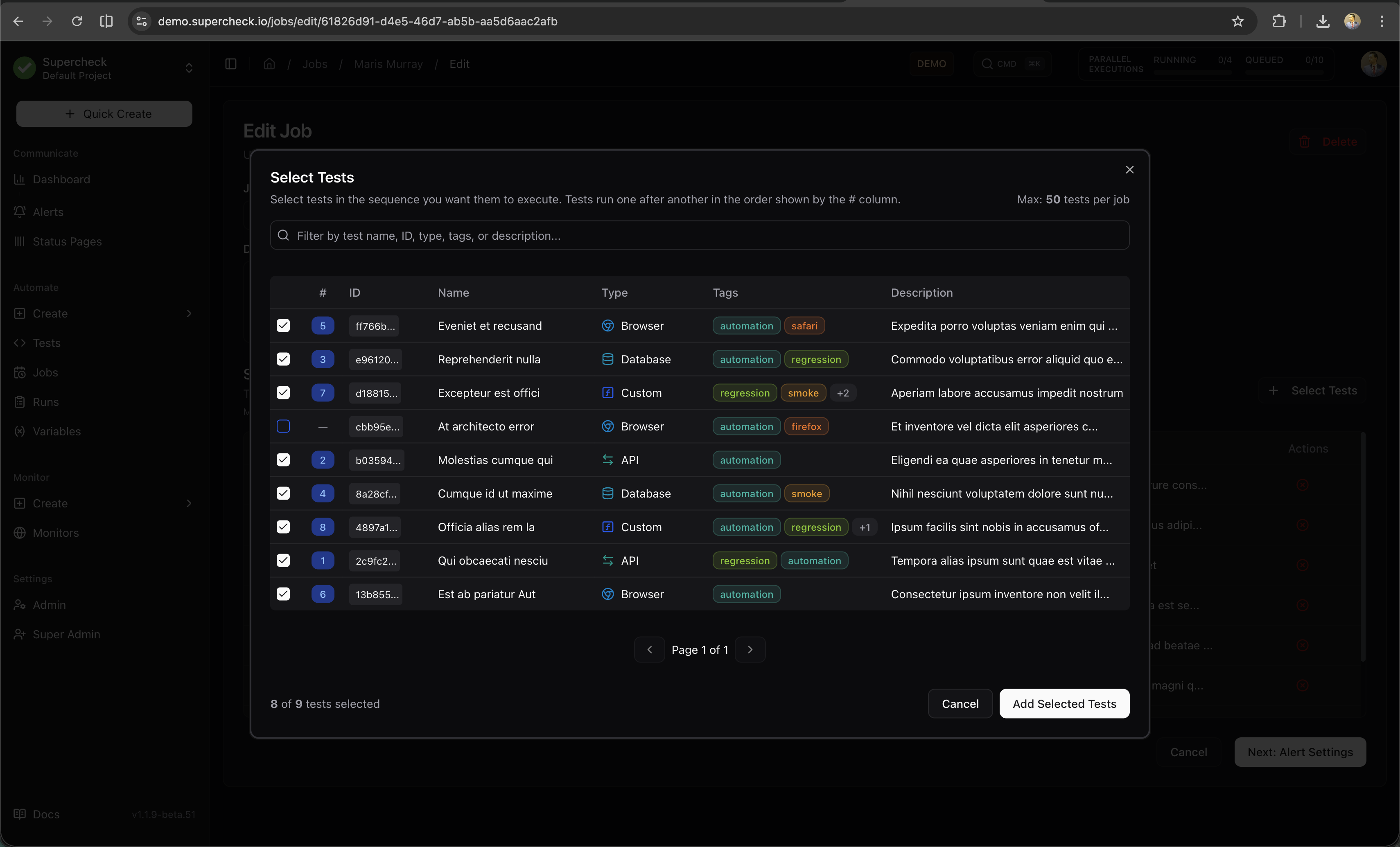
Tests run in the order you select them. Put critical tests first so failures are detected early.
The Playwright HTML report will display tests in their execution order, making it easy to trace through the test sequence.
Step 3: Configure Schedule
Choose when and how the job runs:
| Schedule Type | Description | Best For |
|---|---|---|
| Interval | Run every X minutes or hours | Regular health checks |
| Cron | Custom cron expression for precise timing | Specific schedules (nightly, weekly) |
| Manual | Run only when triggered manually | On-demand testing |
| API Trigger | Run via HTTP API call | CI/CD integration |
Common cron examples:
| Schedule | Cron Expression |
|---|---|
| Every hour | 0 * * * * |
| Every day at midnight | 0 0 * * * |
| Every Monday at 9 AM | 0 9 * * 1 |
| Every 6 hours | 0 */6 * * * |
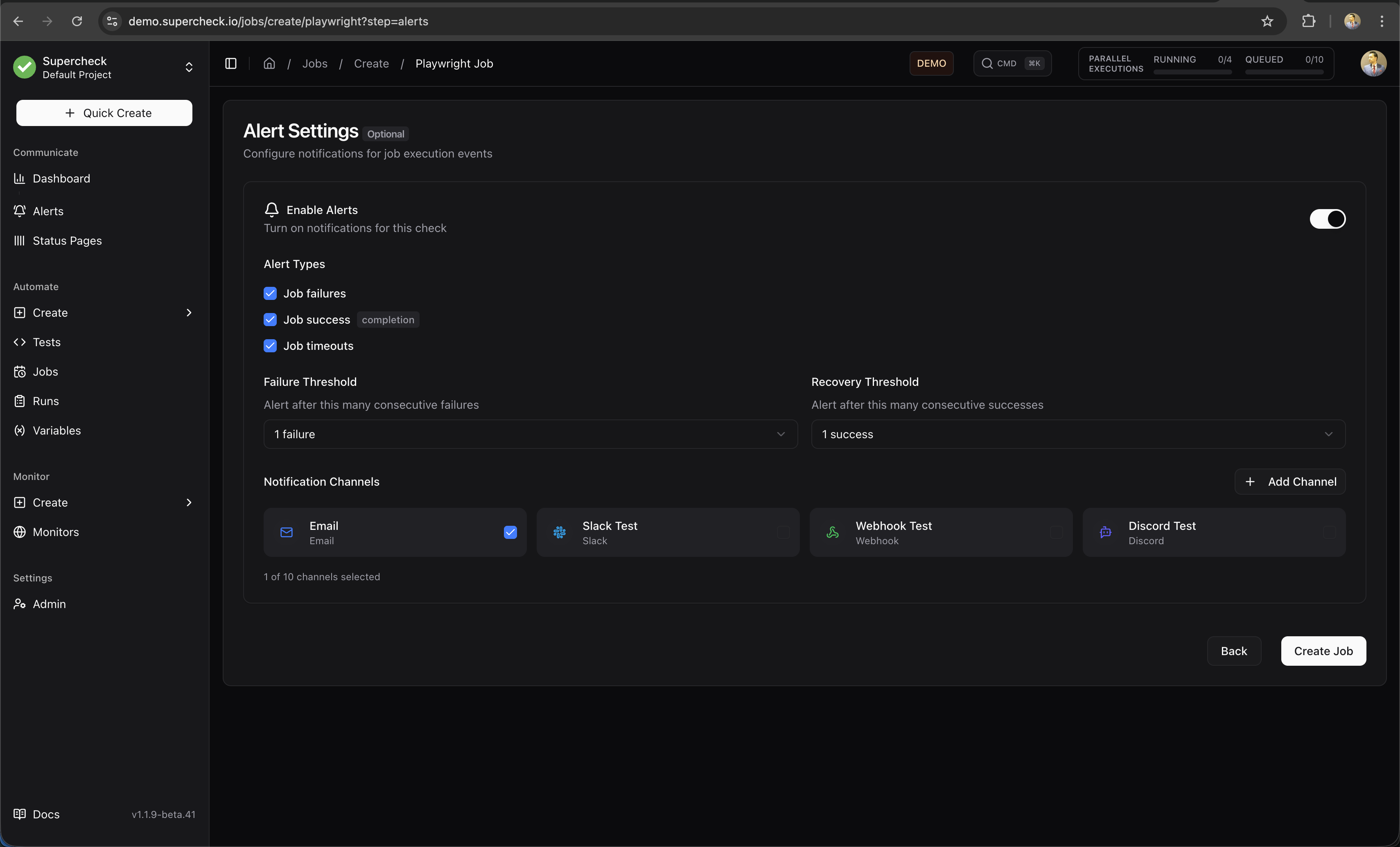
Step 4: Configure Alerts
Set up notifications for job results:
| Setting | Description |
|---|---|
| Job failures | Notify when any test in the job fails |
| Job success completion | Notify when all tests pass (optional) |
| Job timeouts | Notify if the job exceeds its maximum execution time |
| Notification Channels | Select Slack, email, Discord, Telegram, or webhook |
Failure and recovery thresholds count consecutive runs, including the current run exactly once. Failed and errored runs both count toward the failure threshold. A different outcome breaks the consecutive sequence.
Parallel Execution
Run multiple jobs or tests simultaneously to reduce total execution time. The parallel execution panel in the header shows real-time status of all running and queued executions across your organization.
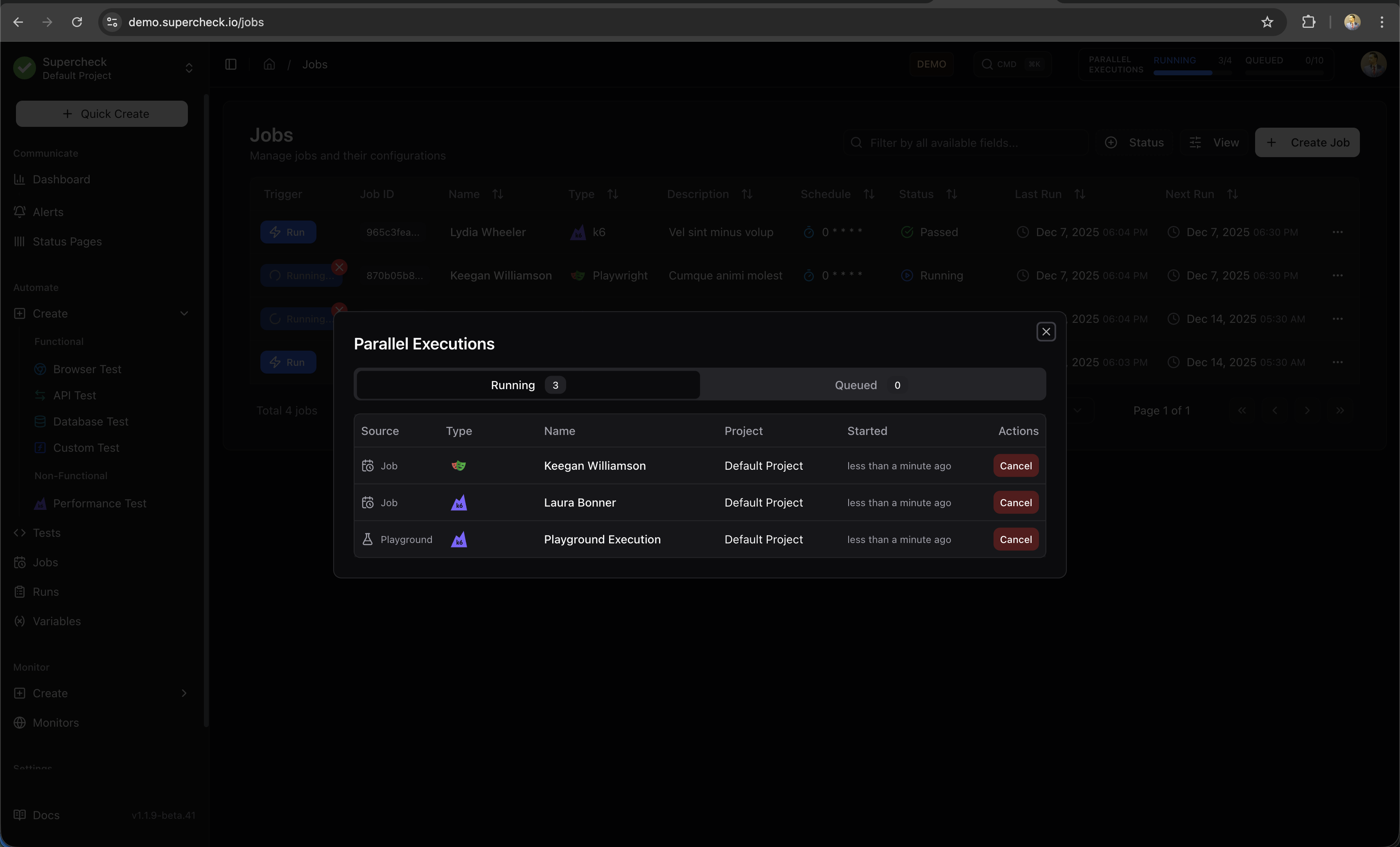
Manage executions:
- Click the RUNNING / QUEUED indicator to view active and waiting runs.
- Open a run to inspect its progress.
- Cancel a run you no longer need.
Runs wait when execution capacity is full. Multiple jobs can run at once up to your capacity limit.
Capacity limits: self-hosted installations have configurable concurrent and queued job limits. See Self-Hosted.
The parallel execution indicator appears in the top navigation bar showing RUNNING and QUEUED counts. Click it to view details and manage executions.
CI/CD Integration
Trigger jobs from your CI/CD pipeline to run tests after every deployment.
Create a job trigger key, store it as a secret in your CI/CD platform, and call the copied trigger URL after deployment. To make the pipeline wait for the result and fail when tests fail, use the CLI CI/CD workflow with supercheck job trigger --wait.
Scroll horizontally to view the full diagram.
This shows the CLI workflow with --wait. A plain HTTP trigger starts the job but does not wait for the test result.
Setting Up API Triggers
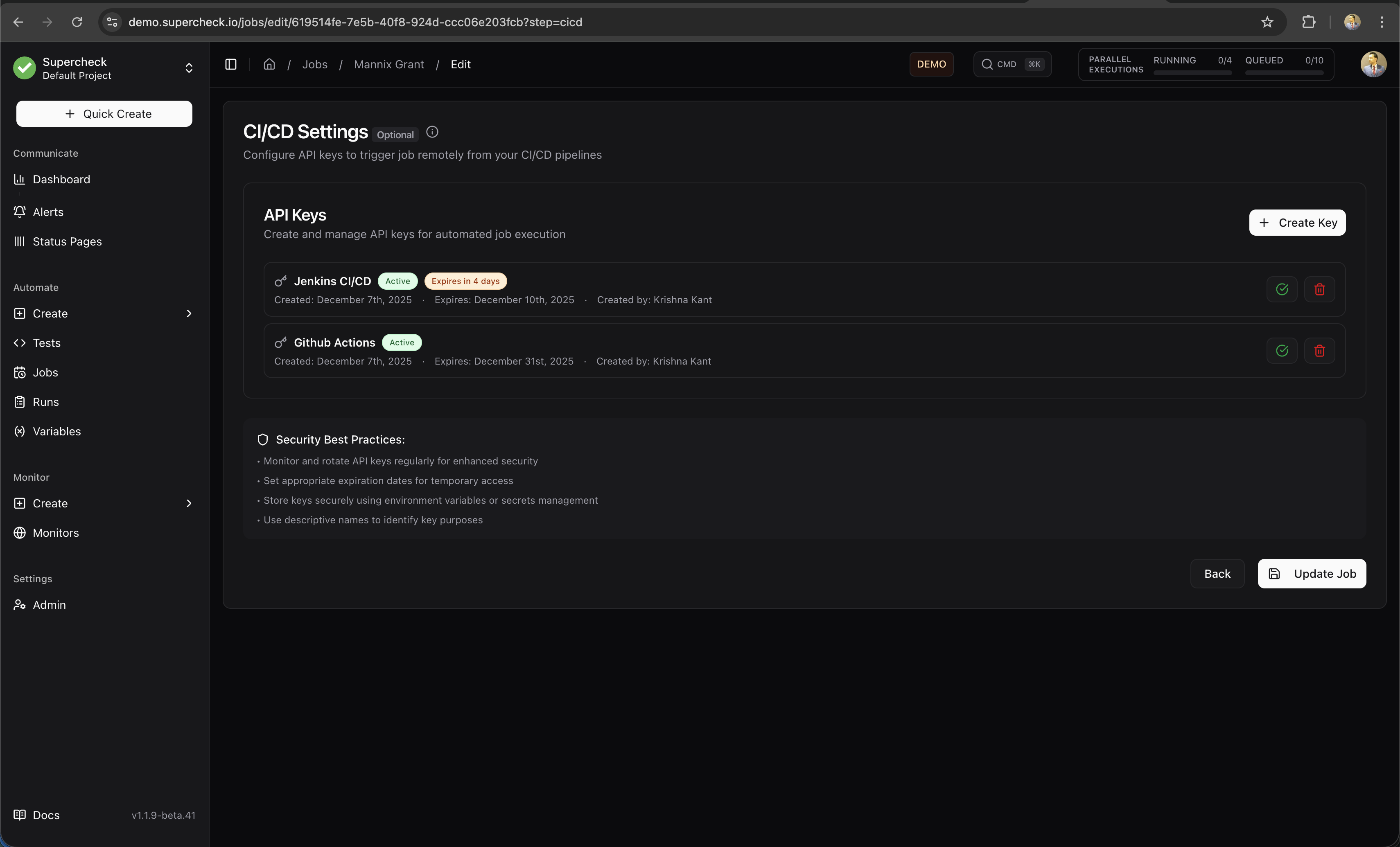
- Open the job you want to trigger
- Open the job's Edit action and continue to CI/CD Settings
- Click Create Key
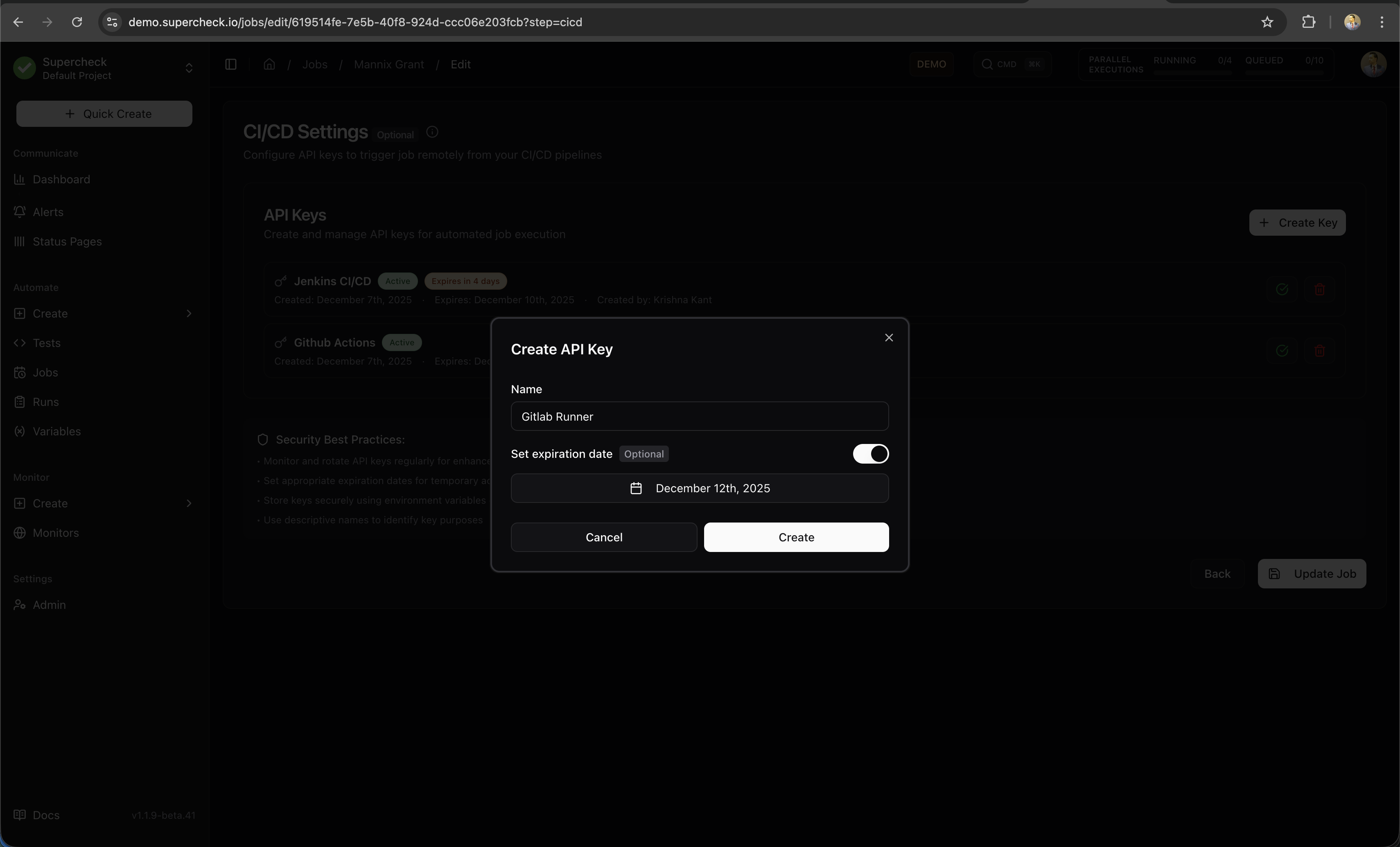
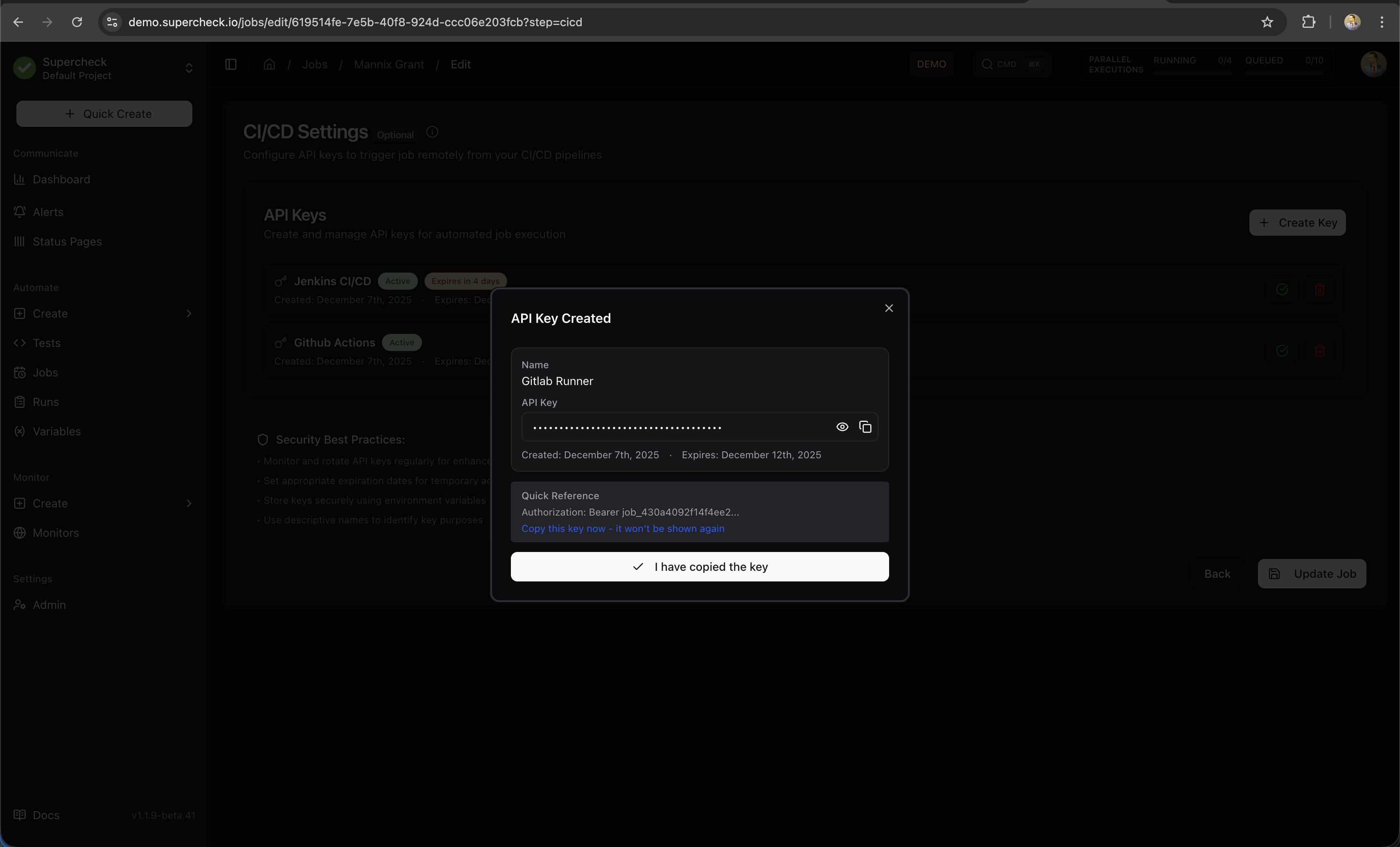
- Copy the trigger URL and API key
Triggering from CI/CD
Basic trigger:
curl --fail-with-body --show-error --silent -X POST \
  "https://your-instance.example/api/jobs/YOUR_JOB_ID/trigger" \
  -H "Authorization: Bearer YOUR_API_KEY"
API Key Security
- Generate unique keys for each CI/CD pipeline
- Store keys as secrets in your CI/CD platform
- Rotate keys periodically for security
- Revoke keys when no longer needed
Job Execution
Running Jobs Manually
- Go to Jobs list
- Click the Run button on any job
- View real-time progress in the execution dialog
- Results appear when complete
Canceling Jobs
You can cancel a running job at any time:
- Click the Cancel button on the running job
- Confirm the cancellation
- Review the cancellation status and any partial results in the run details
Viewing Results
After a job completes:
- Summary — Pass/fail status, duration, test count
- Test Results — Individual test outcomes with details
- Reports — Screenshots, traces, and logs for each test
- History — Previous runs for comparison
Job Notifications
Jobs send notifications through your configured alert channels:
| Notification | When | Includes |
|---|---|---|
| Failure | A job fails | Job name and project, which tests failed, error summary, link to full report, execution duration |
| Success (optional) | Enabled, and the job passes | Job name and project, all tests passed confirmation, execution duration, link to report |
| Timeout | A job exceeds the maximum execution time | The job is automatically stopped, a timeout notification is sent, and partial results are saved |
Execution Time Limits:
- Playwright Jobs: Maximum runtime of 60 minutes for the entire job execution
- K6 Performance Jobs: Maximum runtime of 60 minutes per job execution
- Individual Tests: Each test within a job is also subject to its own timeout (5 minutes for Playwright, 60 minutes for K6)