
Super Admin
System-wide administration for self-hosted deploymentsEdit
Super Admin provides platform-level management for self-hosted deployments, including user management, organization oversight, scheduler control, and system health monitoring.
Enable Super Admin
There are two ways to enable super admin access:
Recommended
Run the bootstrap script inside the app container:
docker compose exec app node scripts/bootstrap-admin.js [email protected]Bootstrap is manual — run the script explicitly. For convenience, the script also reads SUPER_ADMIN_EMAIL from the environment as a fallback if no argument is provided, but it does not auto-promote on application startup.
Overview
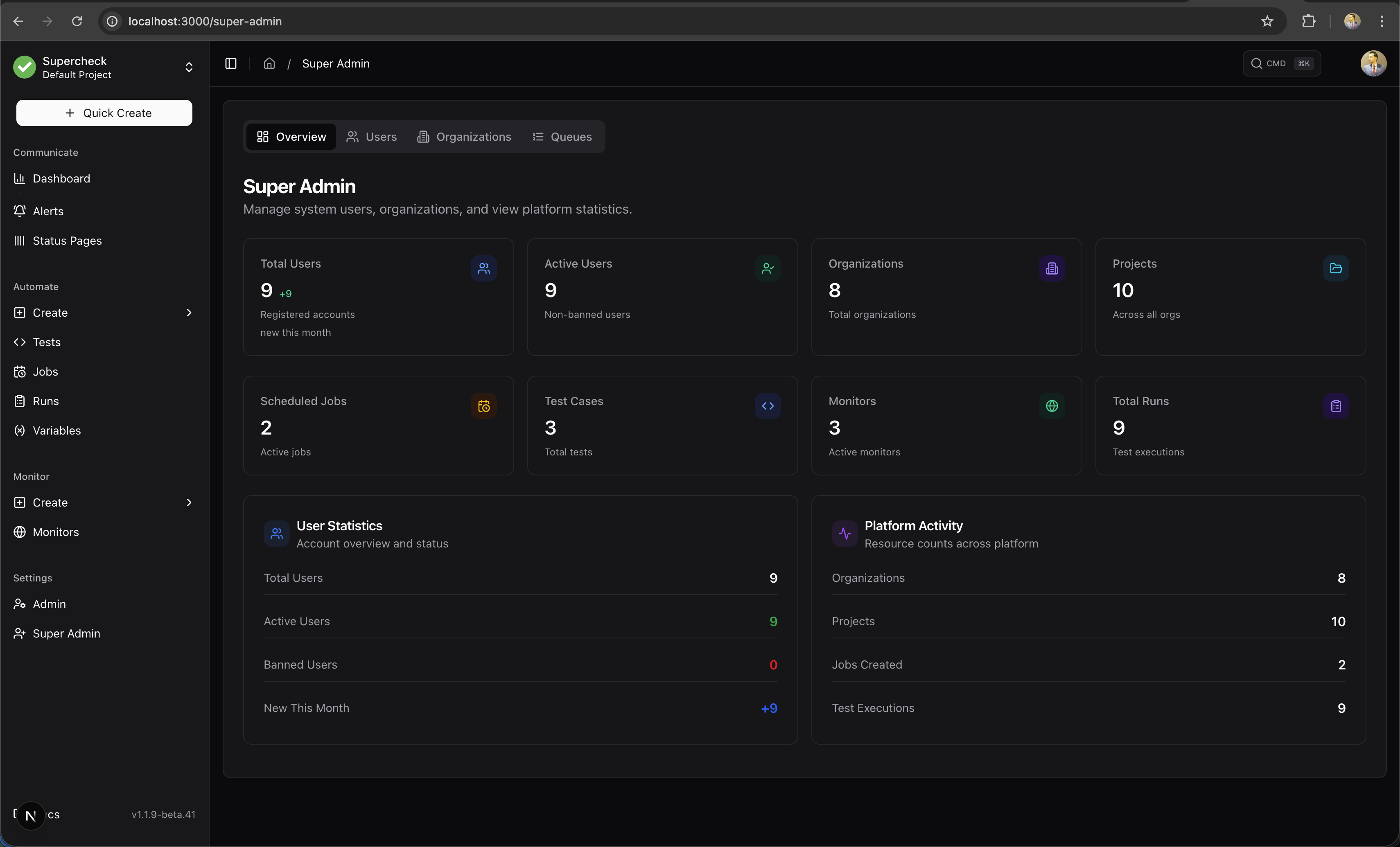
The Super Admin dashboard provides a system-wide view of all organizations, users, and queue status.
Organizations
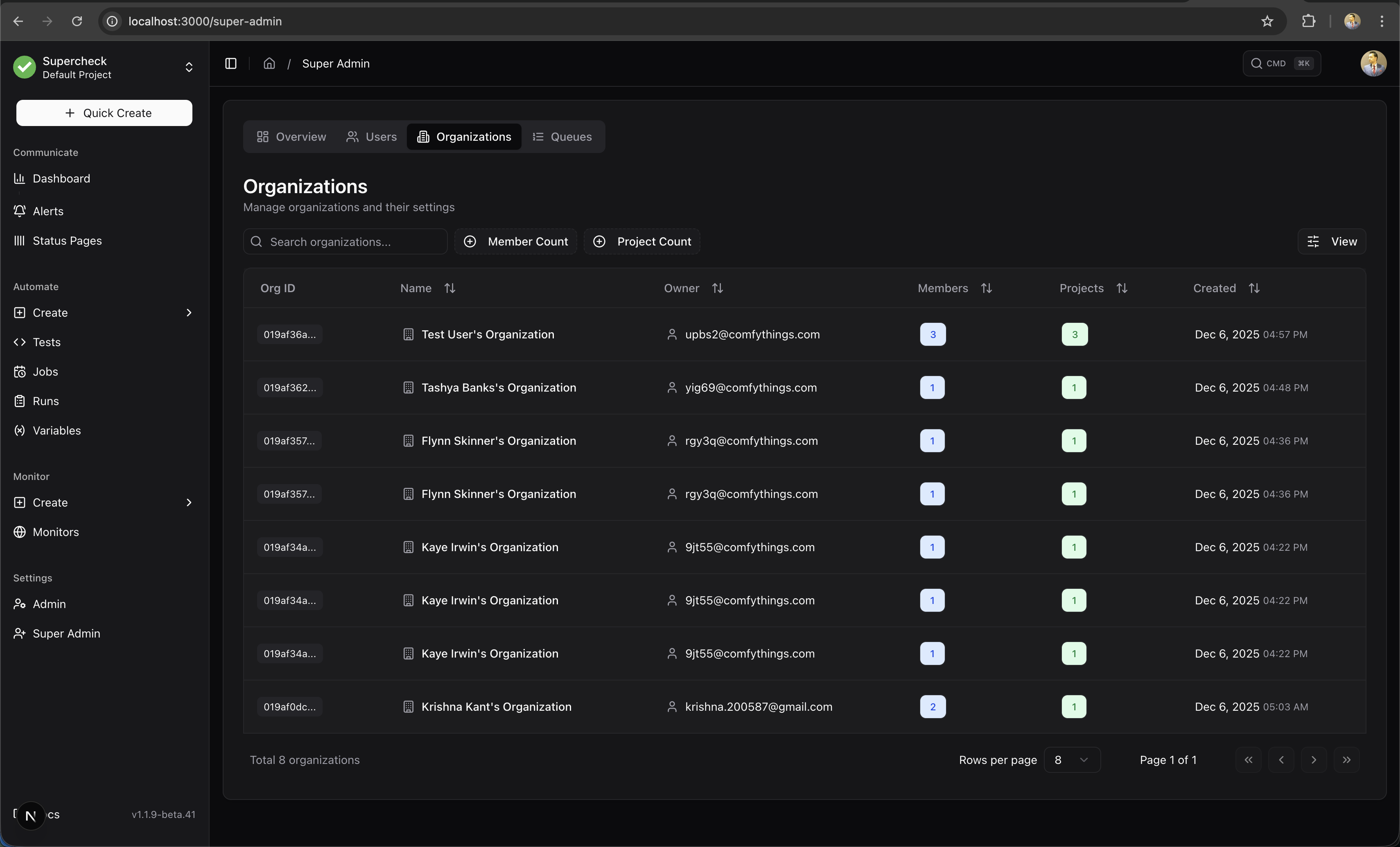
View and manage all organizations in the system. See member counts, project counts, and organization status.
Users
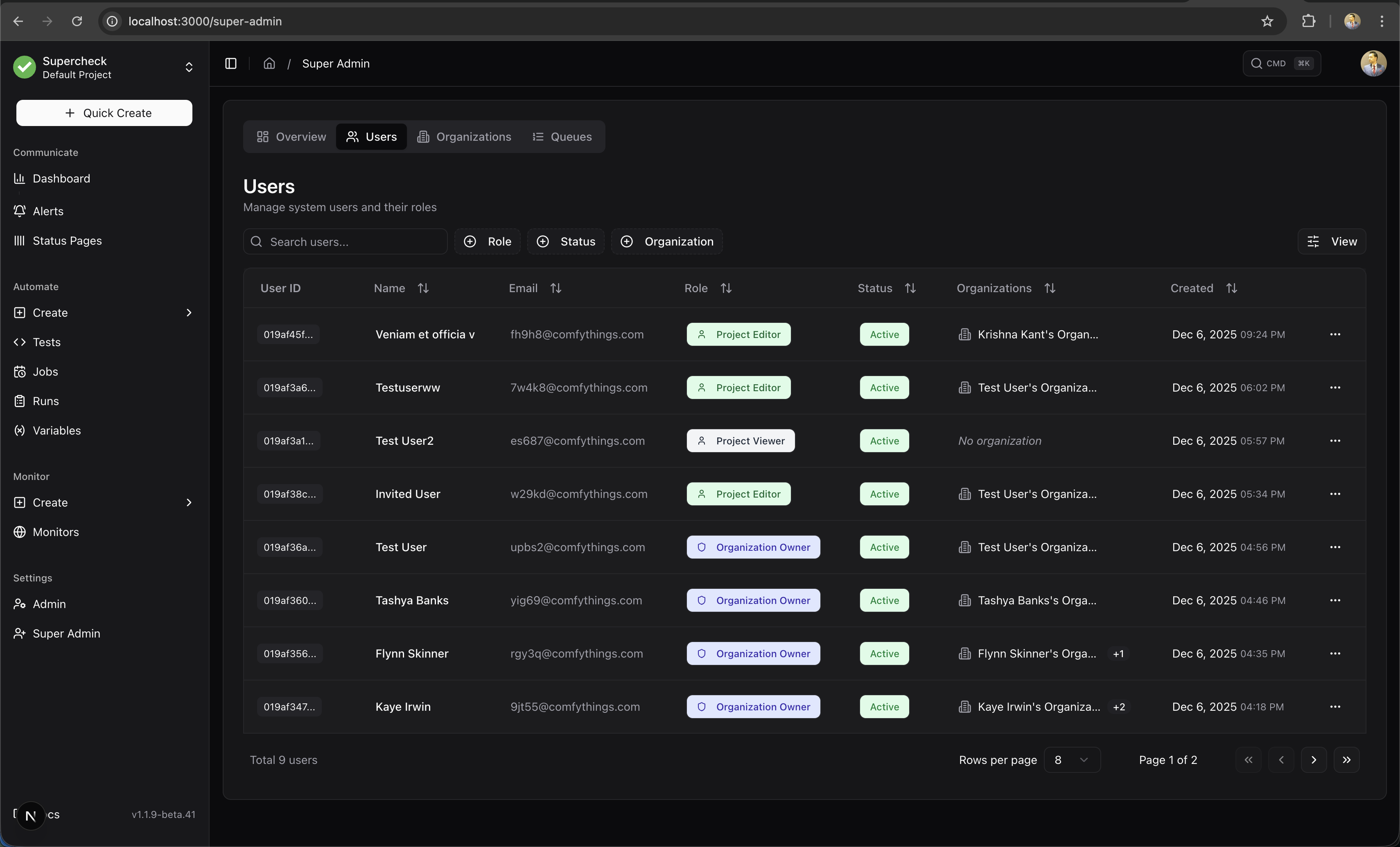
Manage all users system-wide. View user details, organization memberships, and account status.
Queue Management
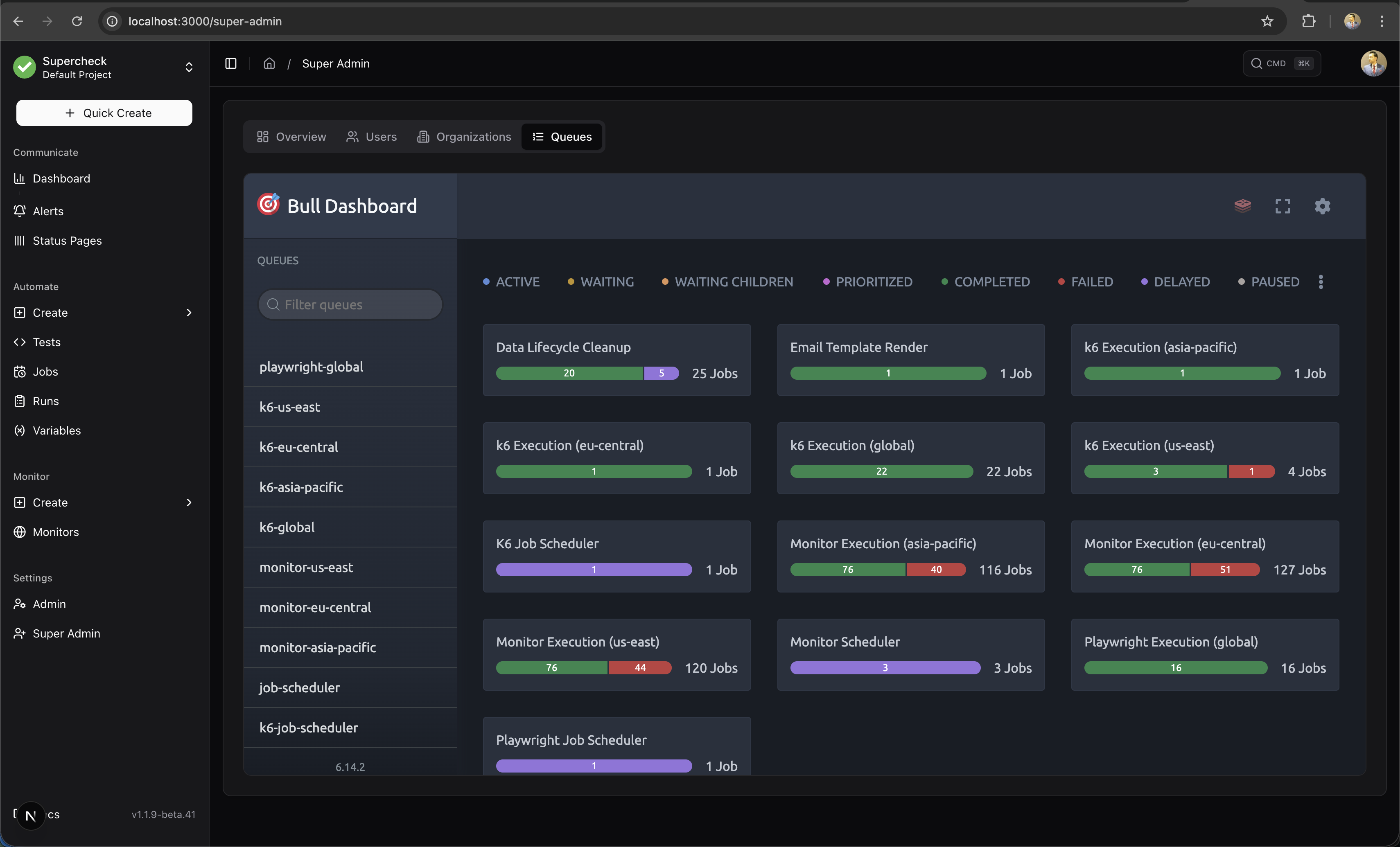
Monitor BullMQ queues for test execution, monitoring, and background jobs. View queue health, pending jobs, and processing status. Queue controls can retry, promote, or delete jobs; use them carefully because these actions affect live work. Admitted jobs retained for a disabled location remain visible and are labelled disabled. The dashboard is restricted to super admins on every request.
Locations
Manage worker execution entries for self-hosted monitoring and performance testing. Connect a worker, then enable its entry for projects.
Adding a Location
- Navigate to Super Admin → Locations tab
- Click Add Location
- Fill in the fields described below and click Save
| Field | Required | Description |
|---|---|---|
| Code | Yes | Identifier that must match the worker's WORKER_LOCATION (e.g. worker-pool). Lowercase, 2–50 characters, letters/digits/hyphens only, no consecutive hyphens. Reserved codes (global, all, default, none, any, local, job-scheduler, scheduler) are blocked. |
| Name | Yes | Human-readable display name (e.g. "Worker Pool"). |
| Region | No | Optional descriptive label for administrators. |
| Flag | No | Emoji flag for the UI (e.g. 🇺🇸). |
| Coordinates | No | Latitude/longitude for map visualization. |
| Default | No | Set as the default K6 job execution location. |
| Browser execution (Playwright) | No | Allow synthetic (Playwright) monitors to run in this location. New locations created in the dashboard start with this off. |
| Performance tests (k6) | No | Allow k6 tests pinned to this location. New locations created in the dashboard start with this off. |
| Enabled | No | Make the location available for new checks and runs. On by default; turn it off to stage a region (its name, coordinates and capabilities) before anyone can select it. A disabled location cannot be the default. |
Location Status
| Status | Meaning |
|---|---|
| Active | Location is enabled and has workers connected (heartbeat detected) |
| Offline | Location is enabled but no workers are currently connected |
| Disabled | Location is unavailable for new checks and runs |
A location becomes Active when it is enabled and a matching worker connects. Deploy a worker with the matching WORKER_LOCATION to bring a location online; until the location is created, the worker appears in the Unregistered worker locations alert, which confirms it is reaching Redis. A disabled location never shows as Active, and its workers do not consume its queues. See Self-Hosted Deployment for setup instructions.
Default Location
The default location determines where K6 job executions run. Only one location can be default at a time — toggling a new default automatically clears the previous one.
Project Restrictions
Organization admins can restrict which locations a project is allowed to use.
Capabilities
| Feature | Description |
|---|---|
| System Statistics | View total users, organizations, projects, jobs, tests, monitors, and runs |
| Organizations | View and manage all organizations |
| Users | Manage all users system-wide, ban/unban accounts |
| Impersonation | Log in as any user for troubleshooting |
| Queue Monitoring | Real-time BullMQ queue stats via Bull Dashboard |
| Location Management | Add, edit, enable, or disable worker execution entries |
User Management
Manage all users across the platform:
- View Details — See user profile, email, and organization memberships
- Ban/Unban — Suspend accounts with a reason (banned users cannot log in)
- Impersonate — Log in as any user for troubleshooting
- Go to Super Admin → Users
- Find the user and click the menu (⋮)
- Select Impersonate
- If the user belongs to multiple organizations, select which one to impersonate into
- Click Impersonate User to confirm
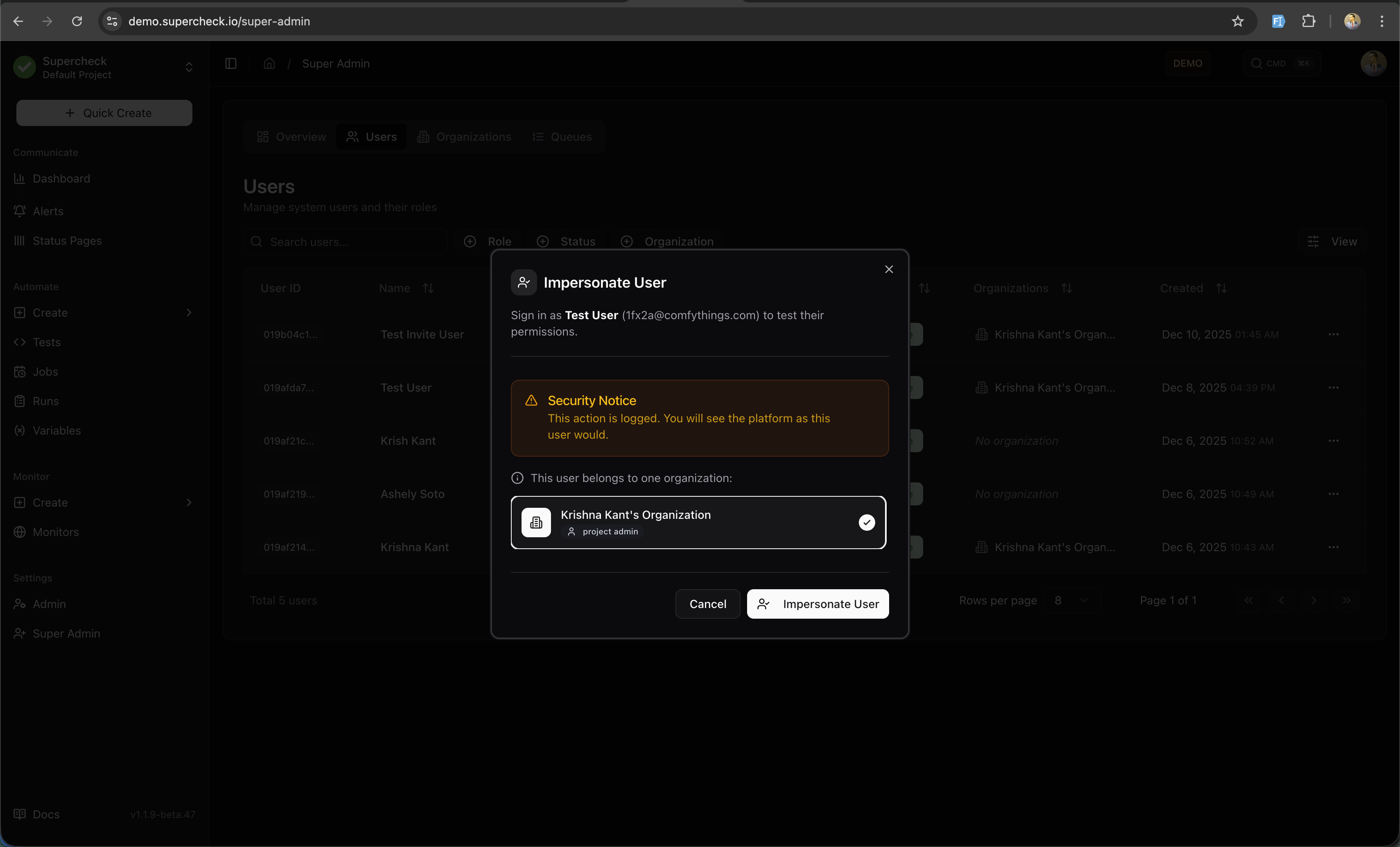
Using Impersonation:
- a banner at the bottom shows "Impersonating" with the user's email
- Click Stop to return to your admin session
- You see the platform exactly as the user would
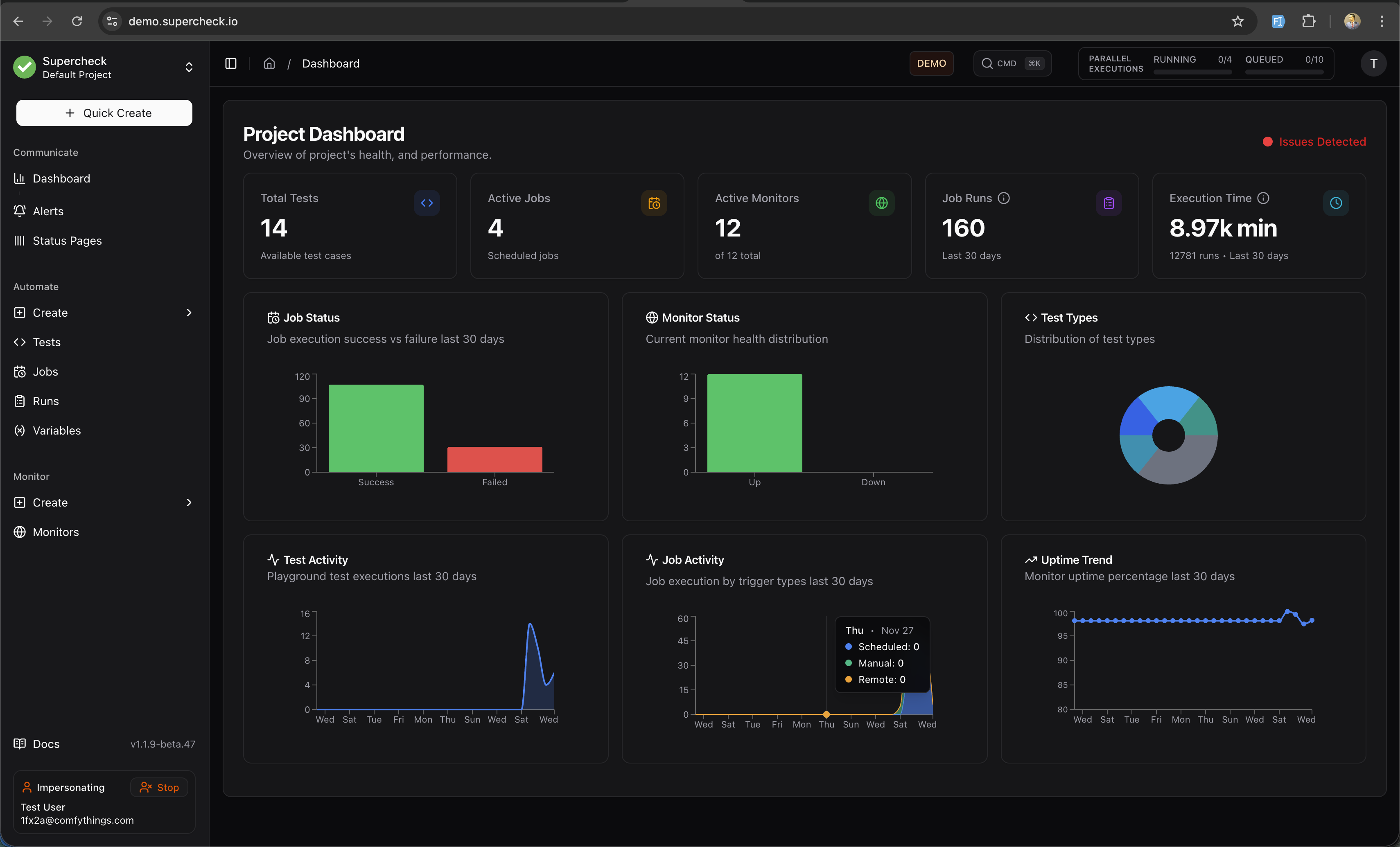
Security Notice: All impersonation sessions are logged for audit purposes. The original admin ID is preserved throughout the session.
Security
| Control | Details |
|---|---|
| Single Admin | Only one super admin email is supported per deployment |
| Validation | Multiple emails in SUPER_ADMIN_EMAIL will cause a startup error |
| Audit Trail | All super admin actions are logged with timestamps |
| Session Tracking | Impersonation sessions preserve the original admin ID for accountability |