
Incident Investigation
Resolve alerts faster with AI-powered incident workspacesEdit
Incidents are the responder queue for issues that need investigation, evidence review, or recovery confirmation.
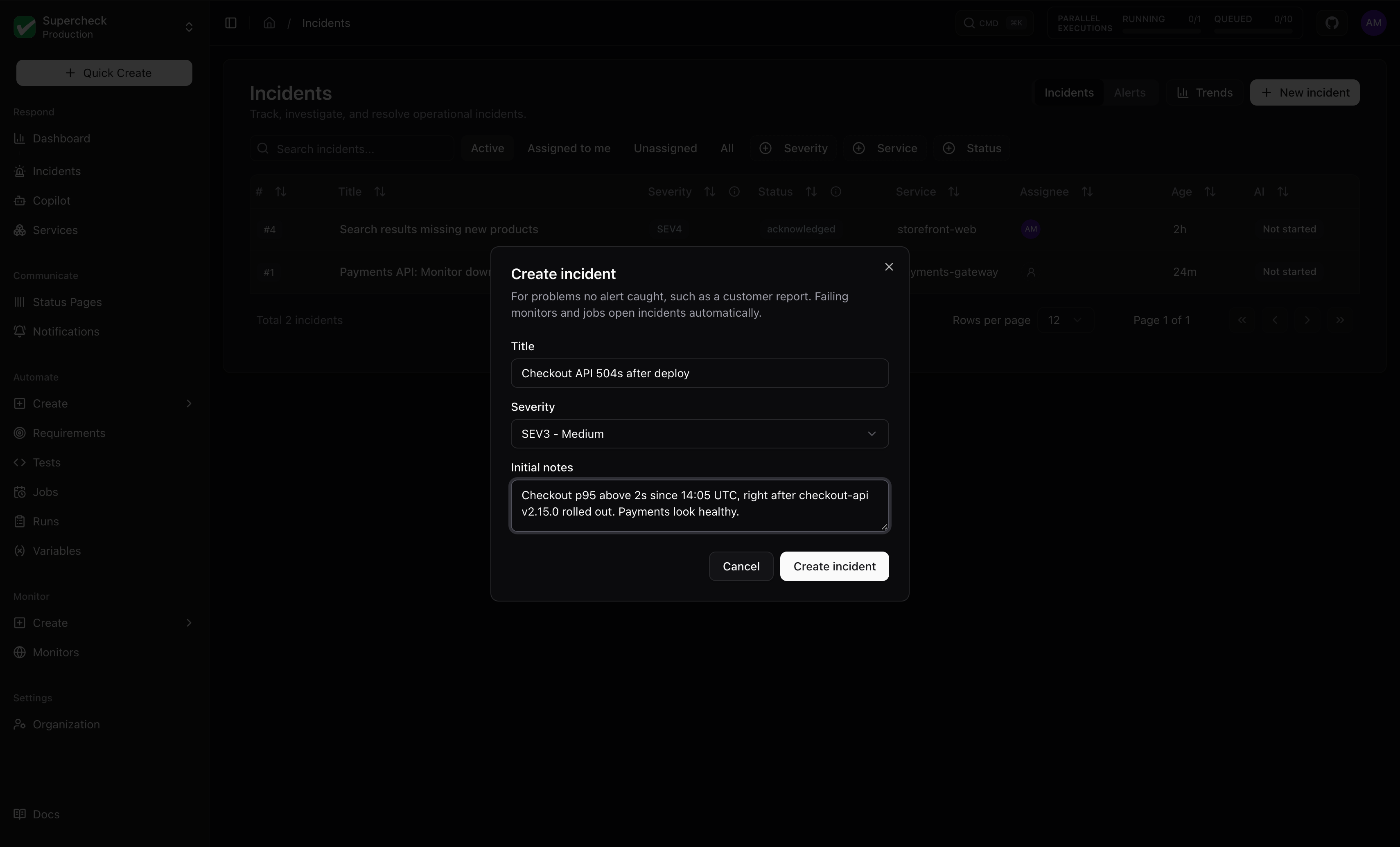
Create an Incident
| From | How |
|---|---|
| An alert | Incidents open automatically when a monitor or job alert fires, with no setup beyond enabling alerts. Repeated alerts for the same target join the same incident. You can also select Open incident next to a failure in Communicate → Notifications → Delivery history. Neither path starts a full AI investigation unless the project turned on Investigate new incidents automatically (see Default policy) |
| Scratch | In Respond → Incidents, select New incident for issues that did not come from a Supercheck alert. You become the assignee |
Both paths open the incident workspace. If AI triage fails, the Activity feed records a triage failed event with the error code, so the failure is visible on the incident.
Incident Queue
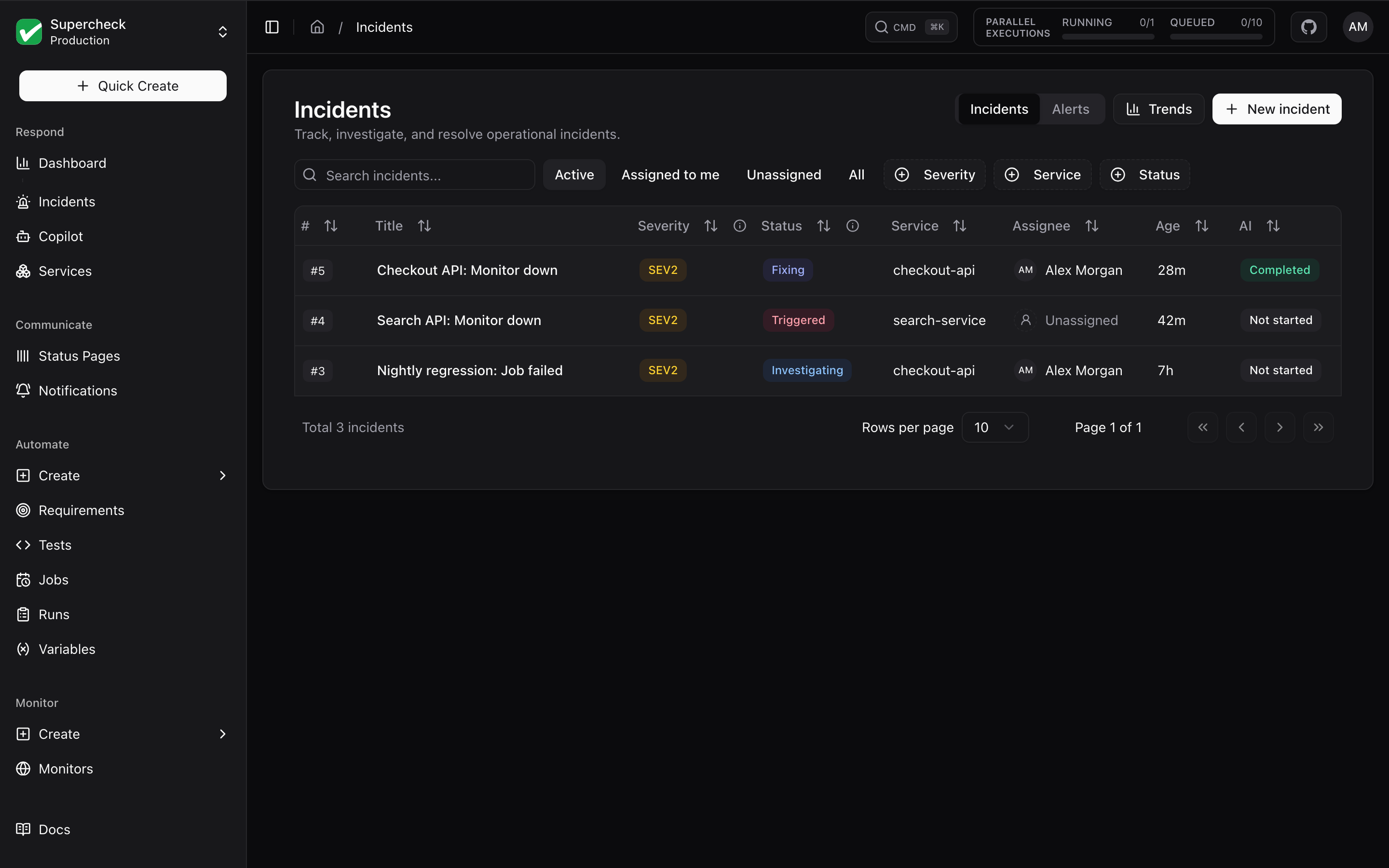
Open Incidents in the sidebar. Trends and New incident are in the page header. Alert notifications sent are listed under Notifications → Delivery history (see Alerts).
The queue opens on Active incidents. Use the quick filters Active, Assigned to me, Unassigned, and All, or narrow by severity (SEV1 through SEV4), status, service, or title.
| Column | Shows |
|---|---|
| # | Incident number |
| Title, Severity, Status | What happened and how urgent it is |
| Service | The linked catalog service |
| Assignee | The person responsible, or Unassigned |
| Age | Time since detection (detection to resolution once resolved) |
| AI | State of the latest AI investigation |
| Updated | When the incident last changed. The queue sorts by it, newest first |
Statuses
The queue and incident page show six statuses. Each maps from the stored incident status.
| Status | Meaning | Stored status |
|---|---|---|
| Triggered | An alert opened the incident and nobody has acknowledged it | triggered, not acknowledged |
| Acknowledged | Someone is on it | triggered, acknowledged |
| Investigating | The team or the AI is looking for the cause | investigating |
| Fixing | The cause is known and a fix is being prepared or applied | identified, recommendations_ready, user_applying_fix |
| Monitoring | A fix is in place and you are watching it hold | verifying |
| Resolved | The incident is over | resolved |
The API, CLI, and MCP return the label as statusLabel next to the stored status. Status filters take the stored values.
Titles
Incidents opened by an alert are titled <target>: <alert type>, for example Checkout API: Monitor down or Nightly job: Job failed.
Incident Workspace
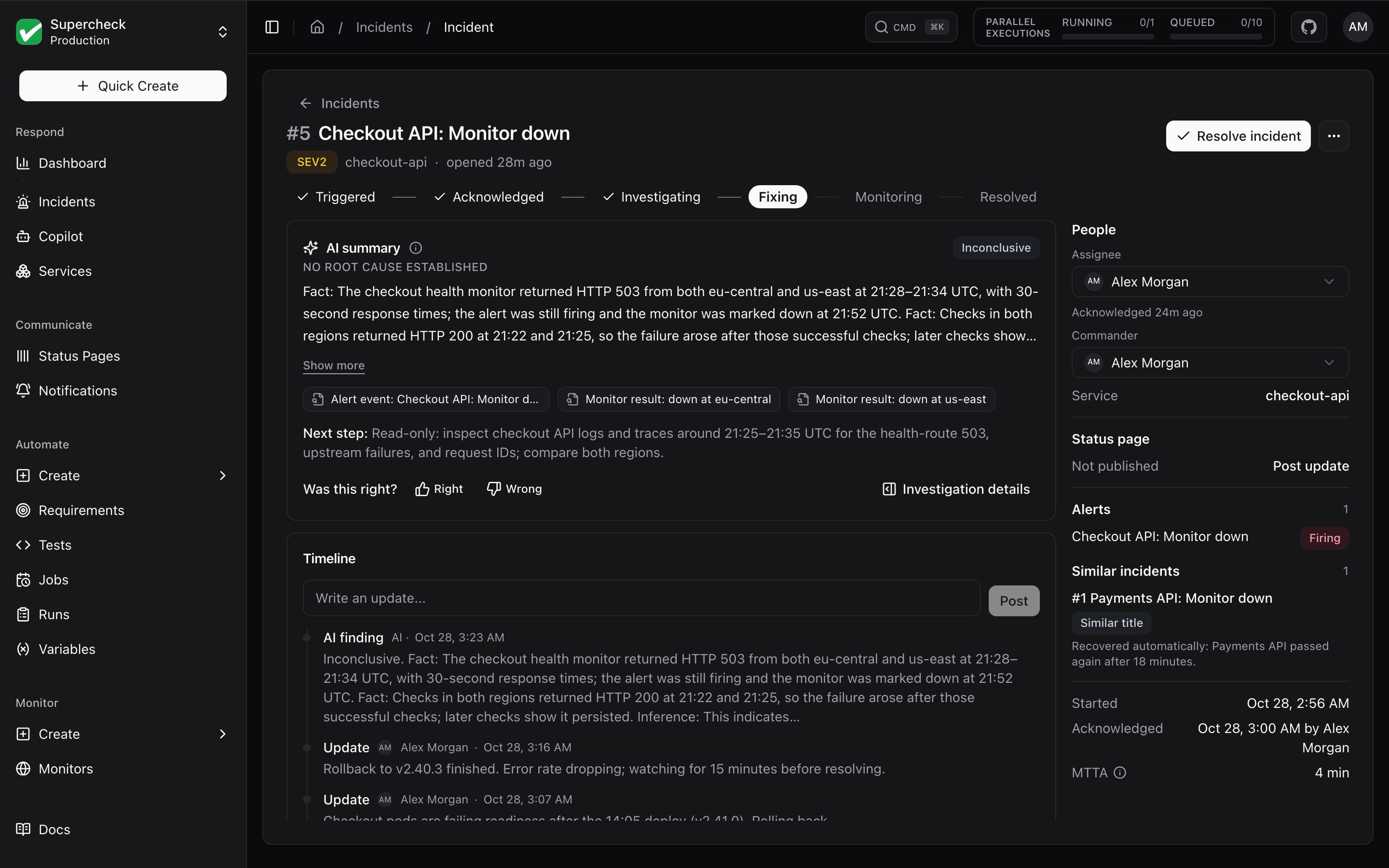
The header shows the incident number, title, status (Triggered, Acknowledged, Investigating, Fixing, Monitoring or Resolved) and severity. One primary button follows the incident: Acknowledge, then Resolve incident. The ... menu holds Edit incident, Add commander, Resolve incident (before acknowledging), and Ask Copilot, which opens Copilot for this incident in a side drawer. Run or re-run an investigation from the investigation sheet.
| Area | Contents |
|---|---|
| Summary | The conclusion (select Show more to expand), confidence, the next step, and Right / Wrong buttons. Run investigation or View investigation opens the investigation sheet |
| Activity | A box to post updates above the event list. Draft customer update with AI fills the box with a customer-safe draft for you to edit. Also post to status page publishes the note as an update on the incident's linked status page incident and emails its subscribers (needs permission to update status pages). The feed shows old → new values for edits, severity and status changes, reassignments, and the alert that was linked |
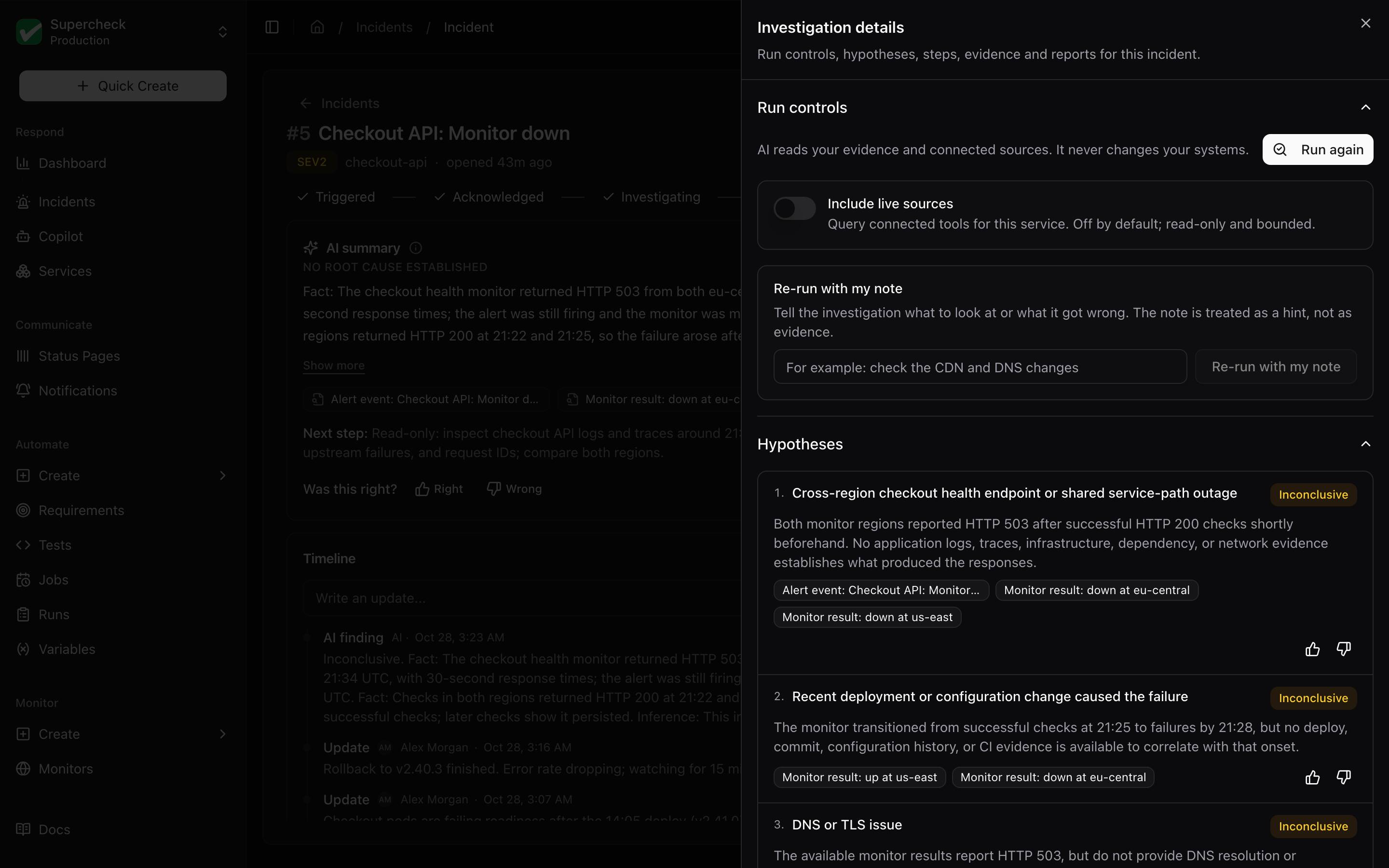
| Investigation sheet | One report: Conclusion with recommended next steps, Hypotheses, Evidence, a collapsed How it was investigated step log, Similar incidents when there are matches, and Post-mortem once resolved |
The Properties panel lists status, severity, assignee (and an optional commander), service, start time, Time to acknowledge and Time to resolve, Status page state with Post update, a Notifications row with a Watch / Unwatch button, and linked Alerts. Open the sheet directly with ?tab=investigation, ?tab=evidence or ?tab=brief; ?tab=evidence scrolls to the evidence list, and a #sre-evidence-<id> link scrolls to that item.
AI summary
The summary card and the sheet answer these questions in order.
| Part | What it tells you |
|---|---|
| Conclusion | One paragraph: what changed, the blast radius, the strongest signals, and the likely cause |
| Confidence | High, Medium, Low, or Inconclusive |
| Recommended next steps | Safe checks to run next. The card shows the first one |
| Hypotheses | Ranked explanations, each marked Validated, Ruled out, or Inconclusive, with a short rationale and its evidence |
Inconclusive is a normal result, not a failure. When the evidence does not establish a cause, the agent says what is missing and lists safe next checks instead of guessing. A hypothesis is only Validated when it cites real evidence from this incident. Runs whose output could not be validated show a plain summary without hypotheses or a confidence rating.
In the sheet, How it was investigated lists each check the agent ran, a short summary of its arguments (secrets are never shown) and how many results came back. It is collapsed once the run is done and updates live while a run is in progress.
Run, re-run, and give feedback
| Control | What it does |
|---|---|
| Run investigation / Run again | Starts a bounded, read-only AI pass over stored evidence and optional live connectors. Only one run can be active per incident; starting another returns 409 until it finishes |
| Run options | Opens Include live sources (off by default; needs a linked service and connector investigation permission) and Re-run with my note |
| Right / Wrong | On the whole investigation or on any single hypothesis, with an optional one-line note (up to 500 characters). Needs permission to update incidents |
| Re-run with my note | In Run options. Starts a new investigation that also sees your note as guidance, plus the notes you left on earlier runs |
| Save report snapshot | In the sheet's More menu once a run completes. Locks the sanitized report for audit and review |
Your notes are hints, not evidence. Recent notes on other incidents of the same service are also passed to future investigations as hints. If a run fails or times out, review the error and available evidence before retrying.
Similar incidents
The Similar incidents section of the sheet (shown only when there are matches) lists up to five resolved incidents from the last 180 days (the top three first, with Show more for the rest) in the same project that share the primary service, the alert source, or words in the title. It shows why each one matched and how it was resolved. A past root cause is context only: the investigation does not copy it without evidence from the current incident.
Evidence
The Evidence section of the sheet lists observations from Supercheck checks and connected systems.
| Item | Contents |
|---|---|
| Evidence items | Observations such as HTTP response codes, latency spikes, test assertions, and traces |
| Evidence brief | A quick AI summary of the saved evidence. It is the Conclusion until an investigation has run; Regenerate brief stays available, and the brief can be copied or downloaded as Markdown |
Stored evidence stays available when a connector is disabled. Disabling a connector stops new live searches but does not remove evidence already collected. Save report snapshot and the Evidence brief can be downloaded to share; credentials and raw connector responses are excluded.
Post-mortem
When an incident is resolved, the Post-mortem section of the sheet offers Generate post-mortem draft. The draft is built from the activity feed, the resolution summary, the hypotheses, and the evidence titles, in these sections: Summary, Impact, Timeline, Root cause, Contributing factors, and Follow-ups.
| Behavior | Detail |
|---|---|
| Drafting | If AI is unavailable, your organization's usage limit is reached, or the model returns something unusable, a template filled from the incident record is used instead, with placeholders where facts are missing. Nothing is invented |
| Editing | Every section is editable. Follow-ups are a list you can add to and remove from. Save post-mortem keeps your edits |
| Regenerate / Export | Regenerate draft replaces the text after you confirm. Export Markdown downloads a .md file |
| Limits | Five drafts per person per incident per hour. Drafting needs permission to update incidents; people with view access can read and export |
Review the draft before sharing it. The Activity feed and resolution summary remain the record of what happened.