
Requirements
Track requirements and the tests that cover themEdit
Requirements keep testable expectations next to the tests that verify them, so you can see at a glance what is covered, what is failing, and what has no tests yet.
Covered
Every linked test that has run passed
Failing
At least one linked test failed its latest run
Missing
No linked tests, or none have run yet
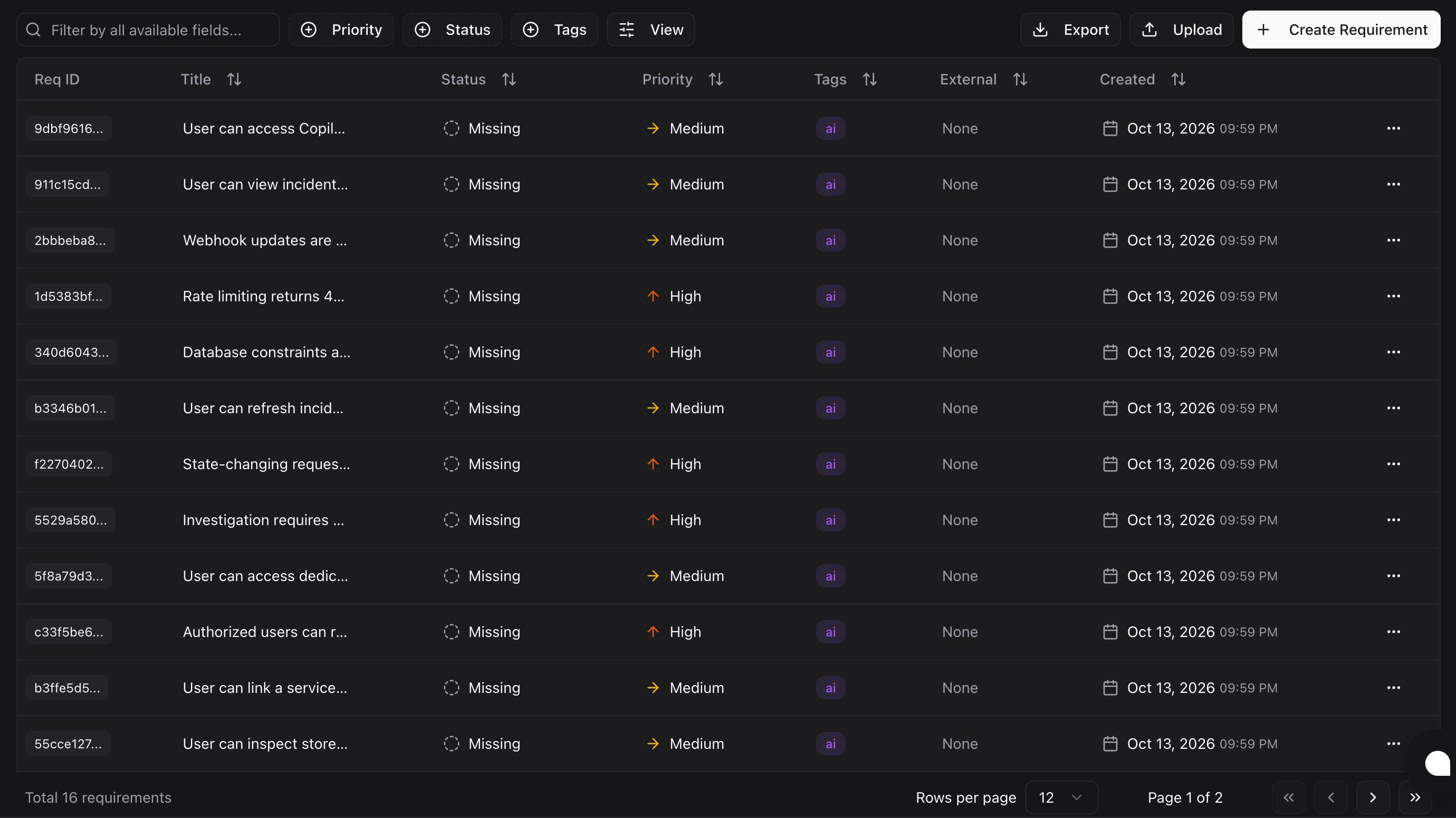
Requirement Fields
| Field | Required | Details |
|---|---|---|
| Title | Yes | One behavior to verify, up to 500 characters |
| Description | No | Acceptance criteria or context |
| Priority | No | Low, Medium, or High. Defaults to Medium |
| Tags | No | Group and filter requirements. AI-extracted requirements carry an ai tag |
| Linked tests | No | The tests whose results set the coverage status |
Add a Requirement
Open Requirements
Select the project, then open Requirements under Automate in the sidebar.
Create it
Choose Create Requirement, enter a title, and set a priority.
Link tests
Link existing tests, or create a new test from the requirement.
How Coverage Is Calculated
Coverage is recalculated only when a job finishes. Running a test in the Playground does not change coverage, and monitors are not linked to requirements.
Extract Requirements from a Document
Choose Upload in the requirements toolbar, or Upload Document on the Documents tab, to have AI draft requirements from a PRD or specification.
| Limit | Value |
|---|---|
| Formats | PDF (.pdf), Word (.docx), Markdown (.md), plain text (.txt) |
| Maximum size | 10 MB by default |
| Tag added | ai |
| AI usage | Uses your instance's AI provider and counts toward organization AI limits |
Review each extracted title, description, and priority before you add it.
The document is sent to your configured AI provider. Do not upload credentials or documents you are not permitted to share with that provider.
Review Coverage
| Task | How |
|---|---|
| Filter | By priority, coverage status, tags, or search text |
| Investigate a failure | Open a requirement's linked tests to see the failing run |
| Share | Choose Export to download requirements as CSV |
Permissions
| Role | View | Create and edit | Extract from document | Delete |
|---|---|---|---|---|
| Org Owner, Org Admin, Project Admin | ✓ | ✓ | ✓ | ✓ |
| Project Editor | ✓ | ✓ | ✓ | — |
| Project Viewer | ✓ | — | — | — |
See Roles & Permissions for how roles are assigned.
Read Requirements Through the API
GET /api/requirements lists the active project's requirements.
| Parameter | Values | Default |
|---|---|---|
page | 1 or more | 1 |
pageSize | 1 to 500 | 500 |
search | Text | — |
priority | low, medium, high | — |
status | covered, failing, missing | — |
The status filter is applied before pagination, and total counts matching requirements. Requirements without a coverage snapshot count as missing. See the API reference for the response format.
Deleting Stored Artifacts
Deleting a resource with stored artifacts waits for storage cleanup to finish. If cleanup fails, the resource stays available so you can retry; a partial cleanup may already have removed some artifacts.